Statements & payments
See the statement, pay in the app
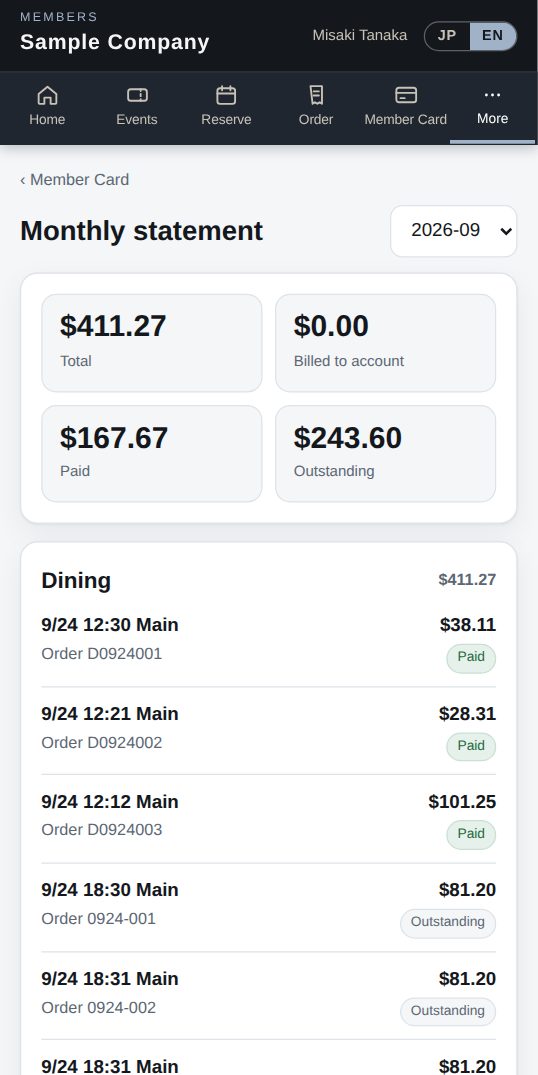
Members see monthly dining and event charges and payment status in the app, and can pay by card when online payments (Stripe or Square) are on. Staff settle open tickets at the register.
What it does
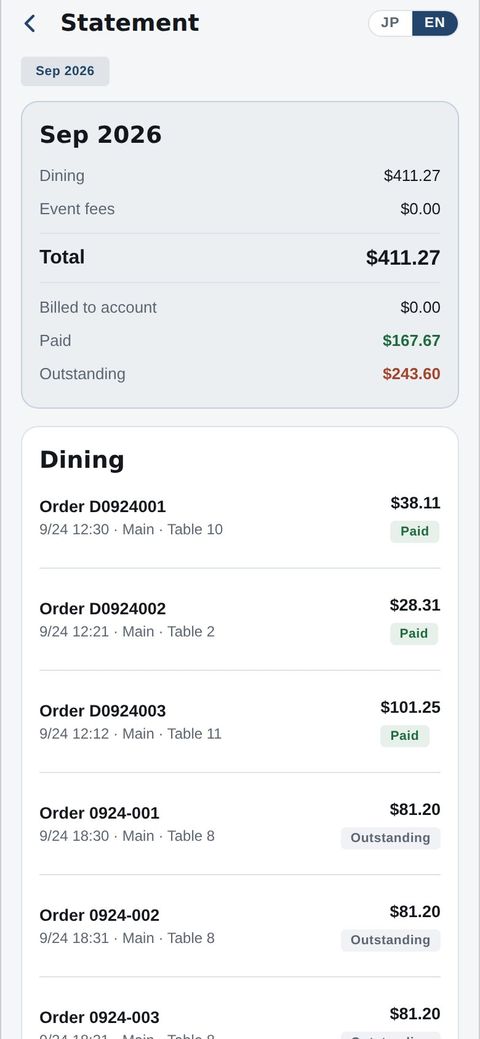
Monthly dining and event charges with payment status.
Card payments via Stripe or Square — for events and orders too.
Pick an open ticket and take card or cash; Tap to Pay is on the way.
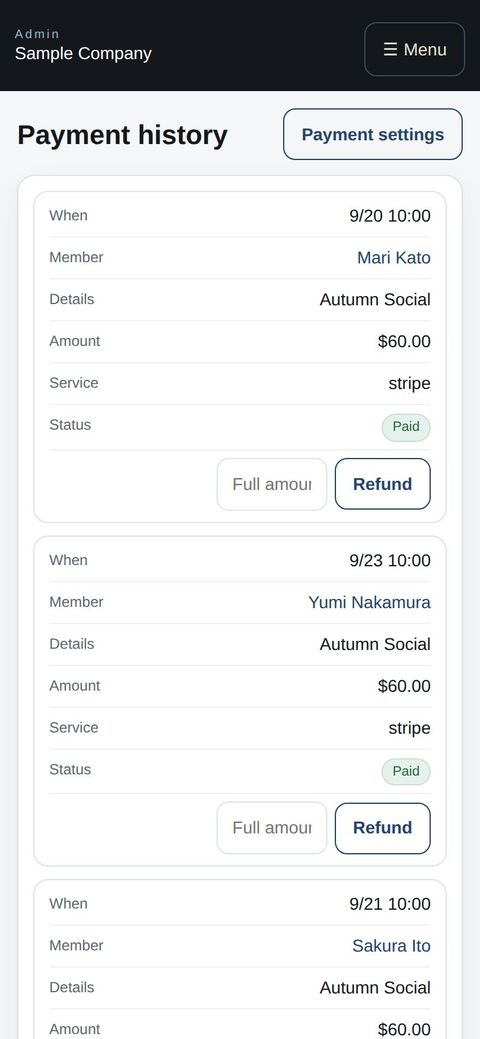
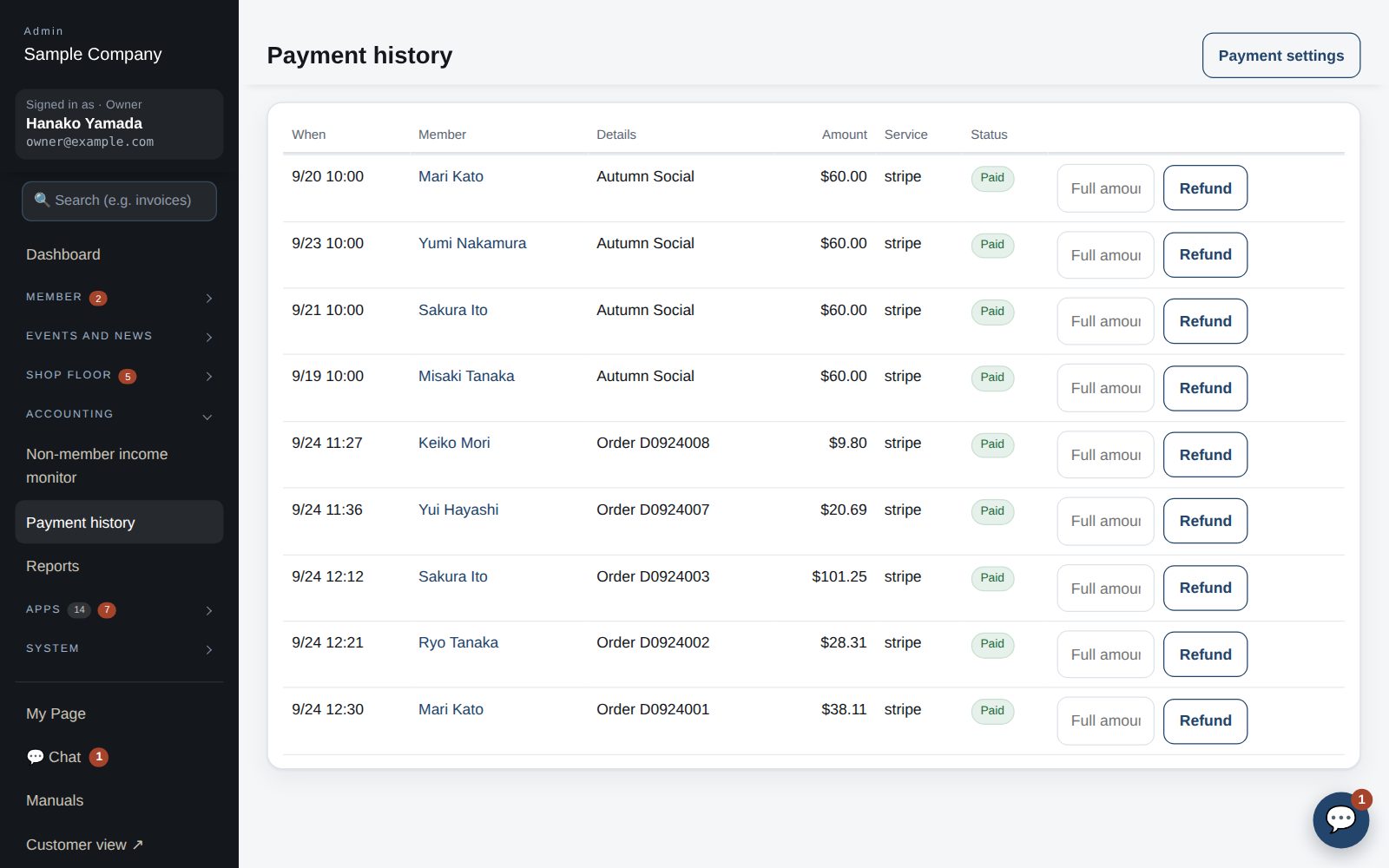
Review everything in payment history and the daily close.
How it flows
- 1Member / guestCheck the statement
My Page → Statement.
- 2Member / guestPay by card
Tap Pay when online payments are enabled.
- 3StaffSettle on the spot
Choose the ticket from the open list at the register.
- 4OfficeClose & book
The daily close totals it up and can send it to QuickBooks.
On phones & in the app
Members check their monthly statement in the app. The office reviews payment history on a phone and can refund on the spot.
- 📱CLT Members iPhone appOne app for members, staff and managers.
- 🌐Phone browserNo install needed — Android too.
- 💻ComputerThe same data on a big screen.
See the screens
Admin (office)
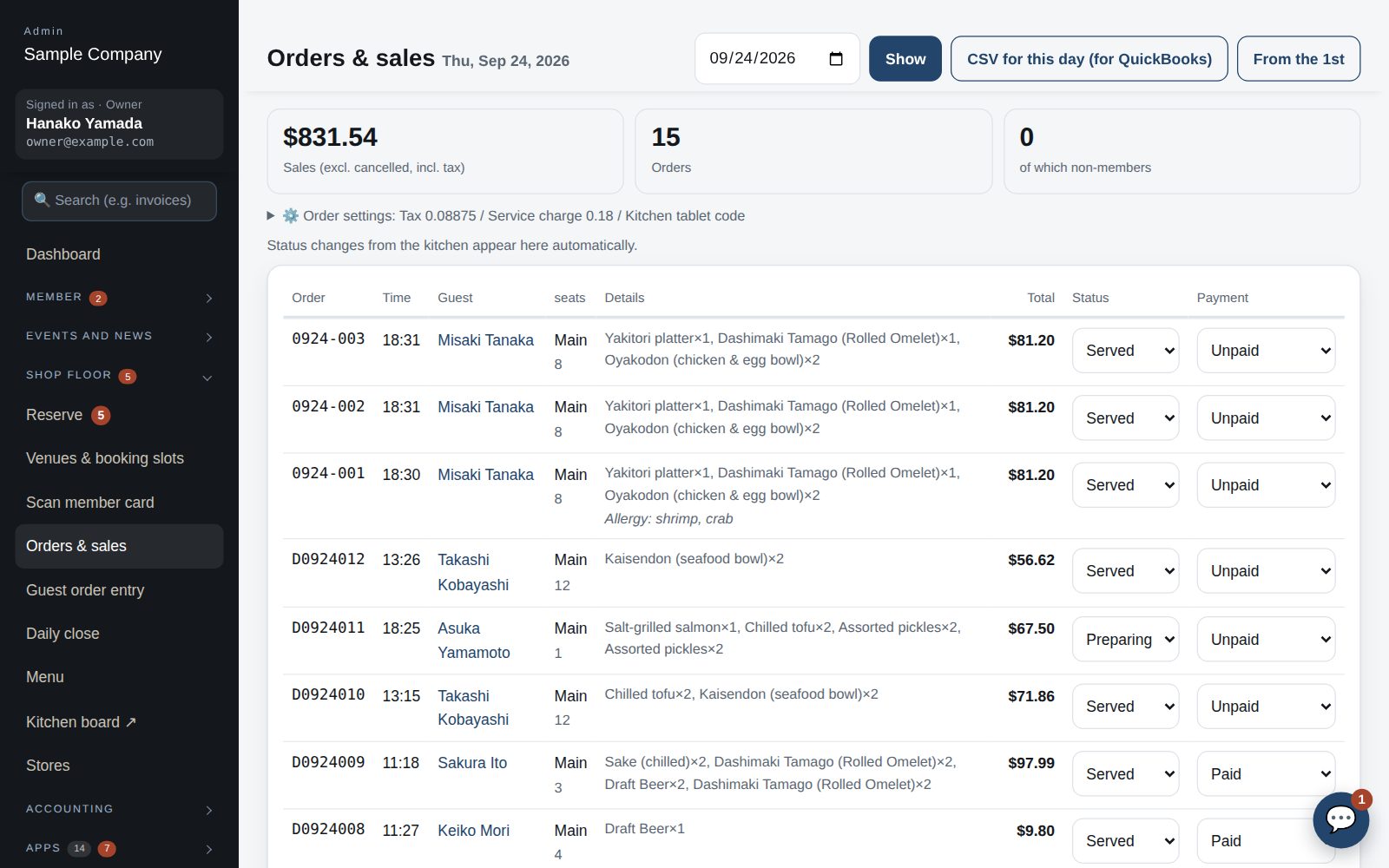
Orders, sales and menu
- Orders & sales: tickets with status (Received / Cooking / Ready / Served / Cancelled) and payment. Open a ticket for party size, member count, guest names and payer (the Rev. Proc. 71-17 record).
- Guest order entry: staff enter non-member orders. The kitchen board (/kitchen) opens with a shared code, which can be regenerated under “⚙️ Order settings” on Orders & sales.
- Menu: manage categories and items (name, English, description, price, allergens, photo, shown/hidden). The English fields are what the app shows in English.
- Daily close: close the day’s tickets, fix the sales and post the journal entry to QuickBooks (when connected). Payments: online payment records (Stripe etc.) and the unpaid list.
Staff screens
Payment and Tap to Pay
- Member orders are normally charged to the member account and settled on the monthly statement. For payment on the spot, open Register → Unpaid in the app and pick the ticket.
- Where Tap to Pay (using the iPhone as a card reader) is enabled, tap “Accept with Tap to Pay” and have the customer hold their card or phone to the top of the iPhone. The ticket becomes Paid when done.
- Until Tap to Pay is available, take payment on the counter terminal or cash and mark the ticket Paid under Orders & sales in the office site (choose the method).
Member app & web
Statement and payments
- My Page → Statement shows dining and event charges by month and what has been paid.
- Where online payment is enabled, pay by card from “Pay”. Receipts for events are under the event’s “Receipt”.
Start with just the features you need. If nothing fits the way you work, we'll build it for you — free.
QuickBooks and ProConnect are trademarks of Intuit Inc., Stripe of Stripe, Inc. and Square of Block, Inc. This service is not provided or endorsed by these companies.