Minimums (annual minimum spend)
Corporate members' minimum spend and what's left — automatically
Set each corporate member's annual minimum, add up their spending and watch progress. Send usage summaries to their contacts, who can also check their status in the member app.
What it does
Per member, or copied from last year.
Spend, remaining, % achieved and how far into the year.
Email contacts a bilingual summary with details.
Contacts see their company's year in the app.
How it flows
- 1OfficeSet up members
Company, contact, email and annual amount.
- 2OfficeAdd spending
Date, description and amount (refunds too).
- 3AutomaticProgress calculated
Members falling short stand out.
- 4OfficeSend to contacts
Email the usage summary.
On phones & in the app
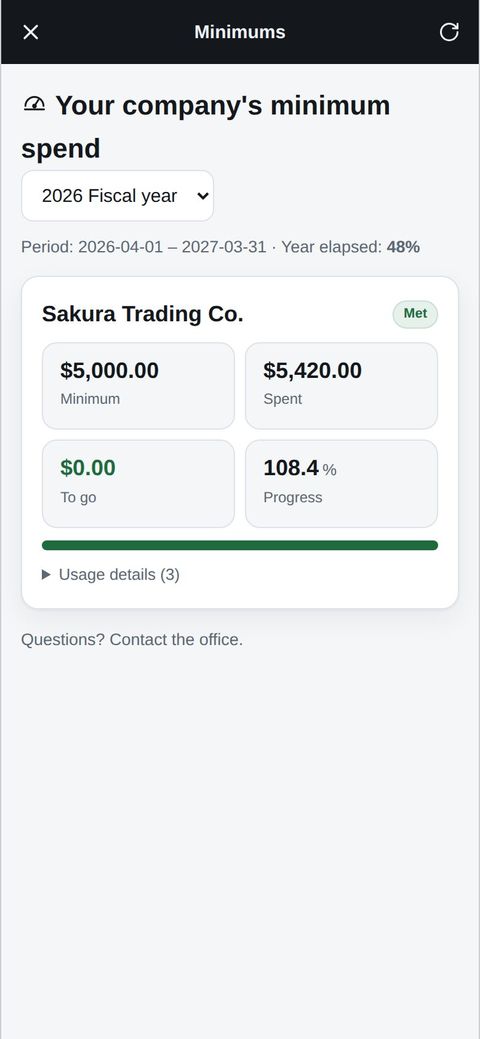
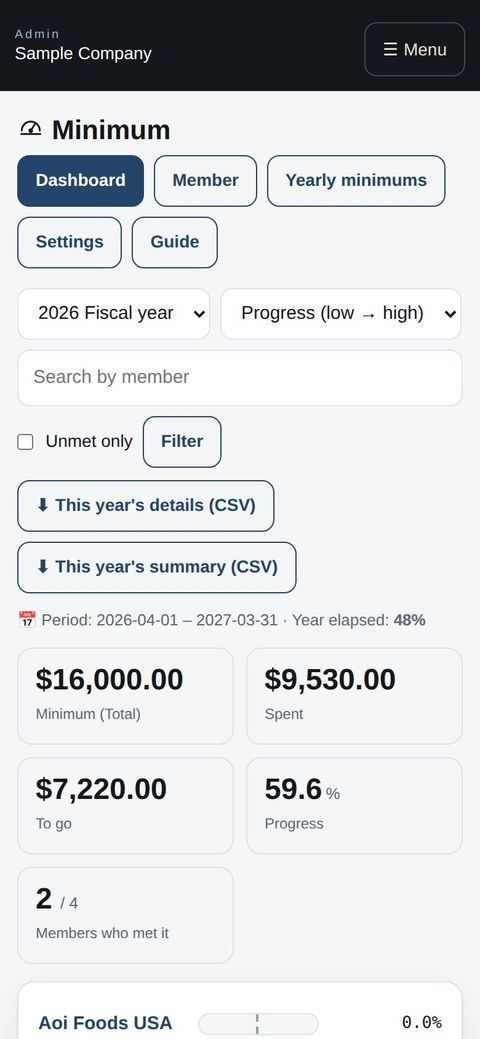
Corporate contacts see their company's spend and progress for the year under “Other apps” → Minimums in the app. The office checks the overall picture on a phone.
- 📱CLT Members iPhone appOne app for members, staff and managers.
- 🌐Phone browserNo install needed — Android too.
- 💻ComputerThe same data on a big screen.
See the screens
Admin (office)
Register members
- Contacts of corporate (company) members can see their company's status for the year in the member app under Home → “Other apps” → “Minimum spend” (on the member web, “Minimum spend” in the menu; read-only). It appears only for people whose login or contact email is in the member's notice email list; regular members don't see it.
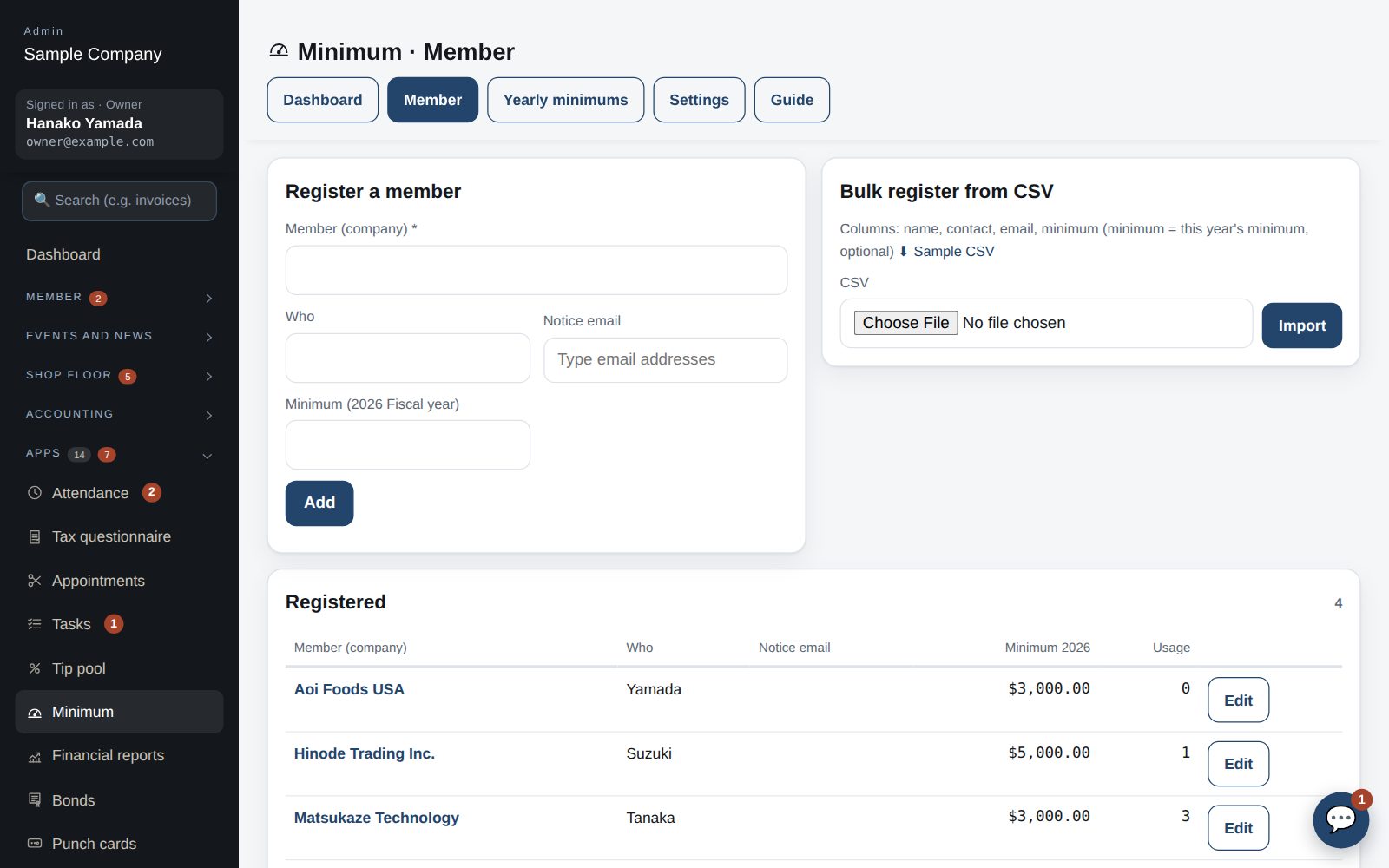
- Under Apps → Minimum spend → Members, register each corporate member with its name, contact and notice email. Bulk import from CSV is available.
- Each member can have its own notice email template (blank = the shared one).
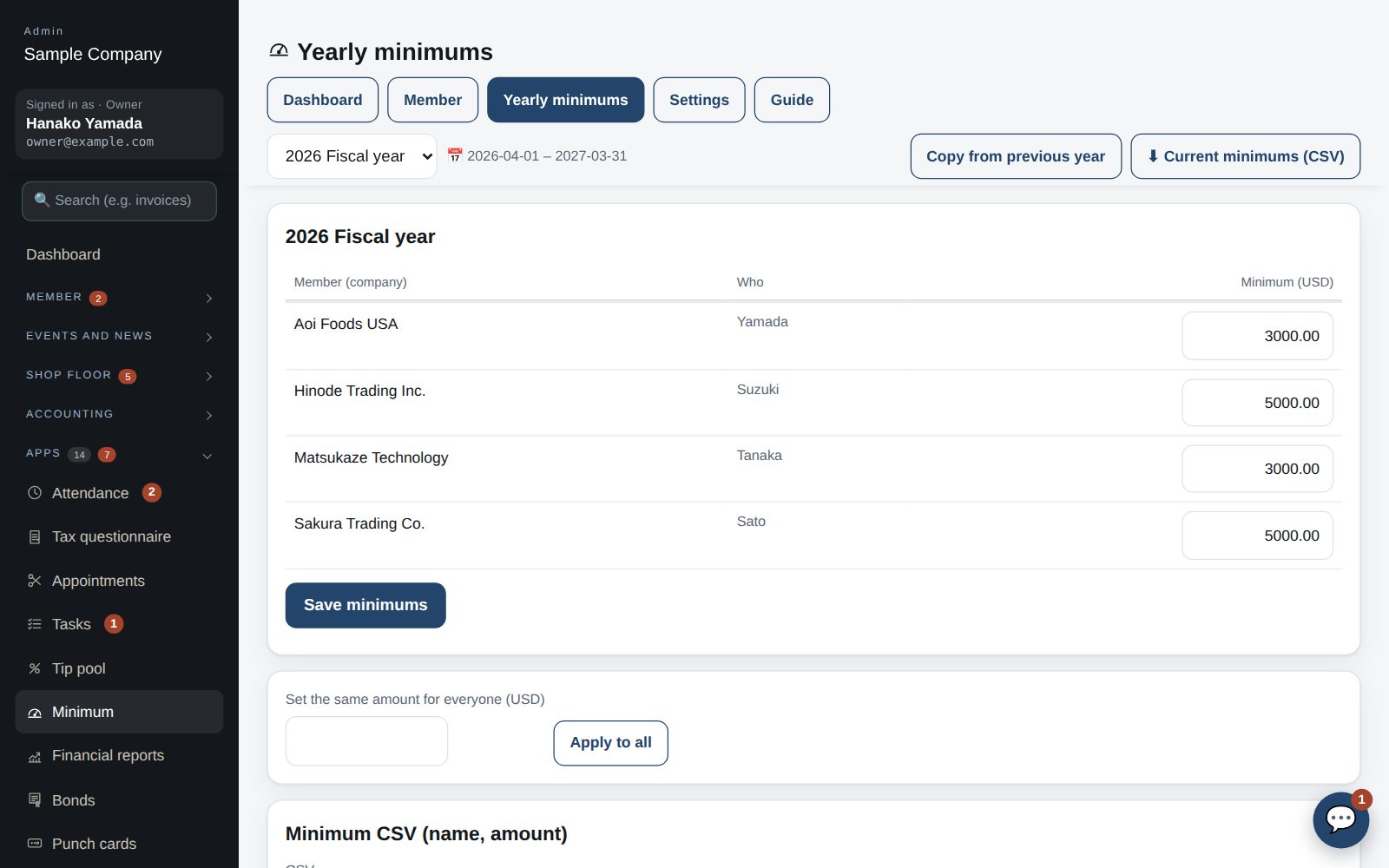
Set yearly minimums
- Under “Yearly minimums” choose the fiscal year, enter each member's minimum and press “Save minimums”. If everyone has the same amount, “Set the same amount for everyone” fills it in one go. The first month of the fiscal year is set in Settings (April by default).
- “Copy from previous year” brings last year's minimums over. A CSV (name, amount) can set them in bulk.
Record usage and watch progress
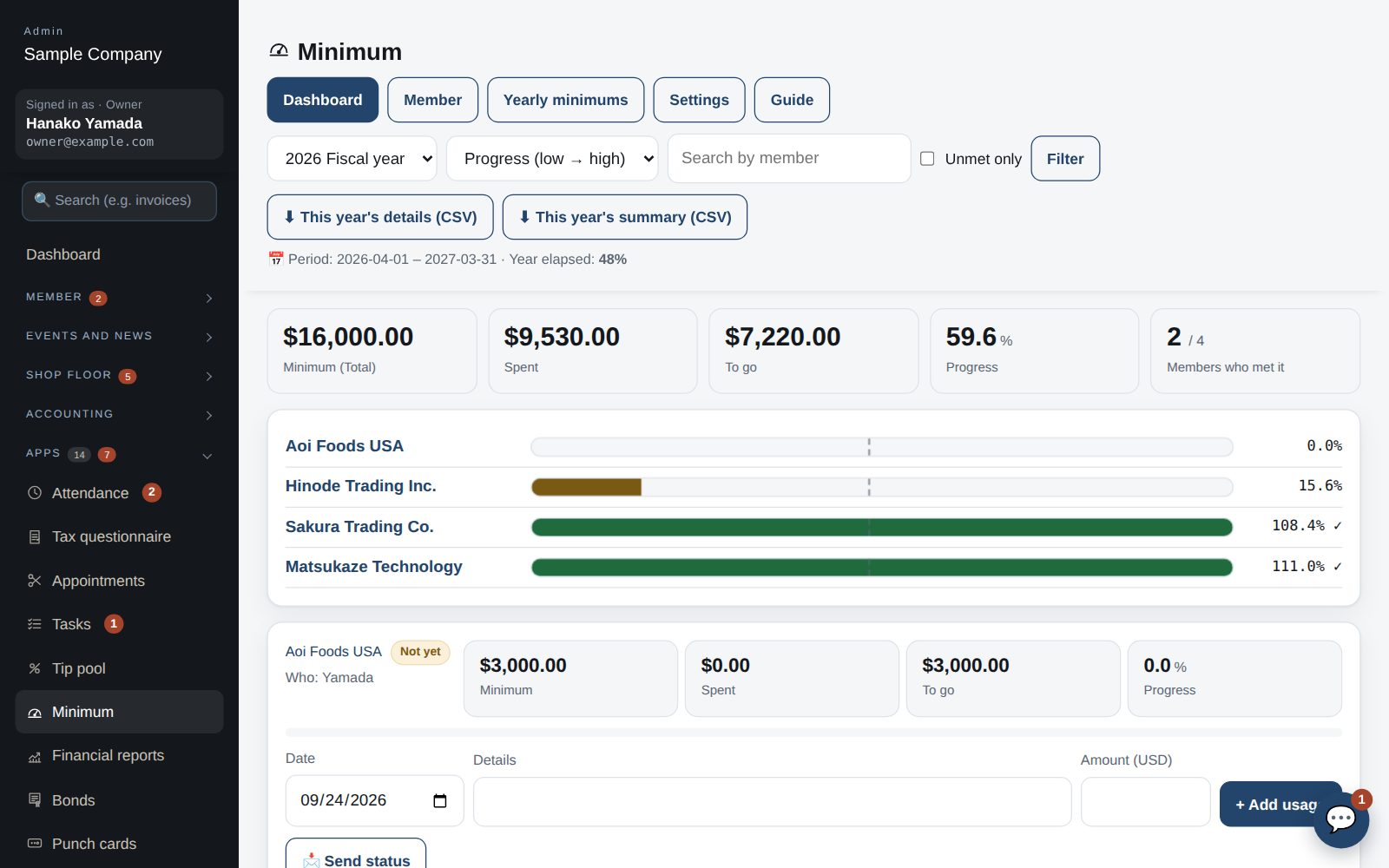
- The “Dashboard” shows a card per member with minimum, spent, amount to go and progress plus a bar, so members who are behind stand out. Members who have met it get a “Met” badge. “Year elapsed” at the top lets you compare pace.
- “Add usage” on a card takes date, description and amount (negative allowed for refunds). It shows at once. Click the member's name for the usage history, where entries can be fixed or deleted.
- The year's details and summary can be downloaded as CSV. “Unmet only” narrows the list to members who are behind.
Send a status email
- “Send status” on a card sends to the recipients (the notice email is pre-filled) and CC. The email includes the minimum, spent, amount to go, progress and the year's details.
- Templates are edited per language in Settings and sent in the recipient's language. Emails can be paused in Settings.
Start with just the features you need. If nothing fits the way you work, we'll build it for you — free.
QuickBooks and ProConnect are trademarks of Intuit Inc., Stripe of Stripe, Inc. and Square of Block, Inc. This service is not provided or endorsed by these companies.