Events
From RSVPs to door check-in and sponsors
Create an event and members RSVP in the app — with guests, meal choices, fees, capacity, deadlines and sponsor tiers. Reminders go out automatically and the door runs on QR check-in.
What it does
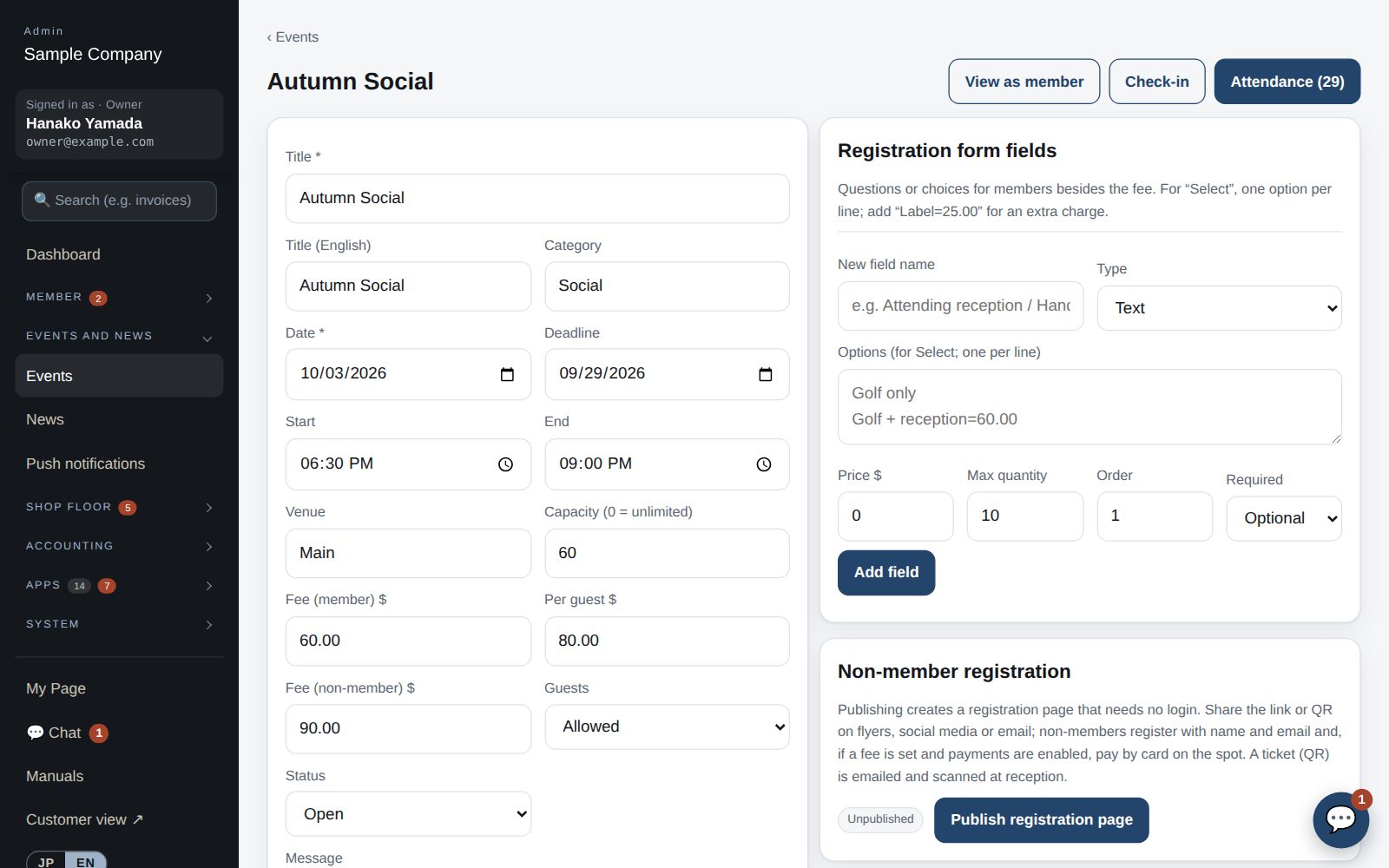
Member and guest fees, capacity, deadlines and custom fields such as meal choice.
Offer tiers with names, prices and slots.
Scan tickets or member cards; arrivals are tallied live.
Publish a URL for non-members; it's recorded as non-member income.
How it flows
- 1OfficeCreate the event
Title, date, venue, bilingual description, fees, capacity, deadline and image. Drafts stay hidden.
- 2Member / guestRSVP in the app
Add guests and meal choices; a QR ticket is issued.
- 3AutomaticReminders
Before the deadline (to those who haven't replied) and the day before (to attendees), by push and email.
- 4StaffCheck in with QR
Scan a ticket or member card to check guests in.
- 5OfficeReview attendance
See RSVPs, guests and payment status, and export CSV.
On phones & in the app
Members browse events in the app and RSVP on the spot, guests and payment included. The office checks sign-ups and the attendee list from a phone.
- 📱CLT Members iPhone appOne app for members, staff and managers.
- 🌐Phone browserNo install needed — Android too.
- 💻ComputerThe same data on a big screen.
See the screens
Admin (office)
Events
- Events → “+ Create”. Set title, date/time, venue, description (Japanese and English), fees (member / guest), capacity, deadline and image. Saved as Draft it stays hidden from members.
- Add custom fields (meal choice, checkbox, quantity…) and sponsorship tiers (name, price, slots).
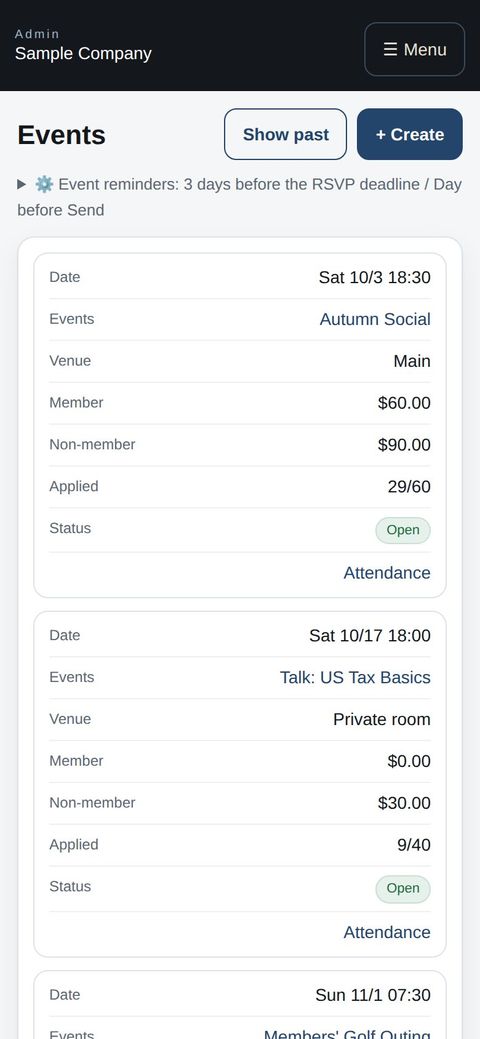
- Attendees: view RSVPs, guests and payment status, export CSV. The Check-in page handles QR check-in on the day and counts arrivals.
- Publish the registration page for non-members to accept public sign-ups via a URL (recorded as non-member income).
- Reminders go out automatically by app notification and email a few days before the RSVP deadline (to members who have not replied) and the day before (to attendees). Set the days and on/off under “⚙️ Event reminders” above the event list.
- To delete an event, open it and use “🗑 Delete this event” below the Save button. Without sign-ups it is deleted right away. For an event with sign-ups, normally set Status to Cancelled so the records are kept; an owner can delete a test event along with its sign-ups by typing its title (events with card payments can't be deleted).
Staff screens
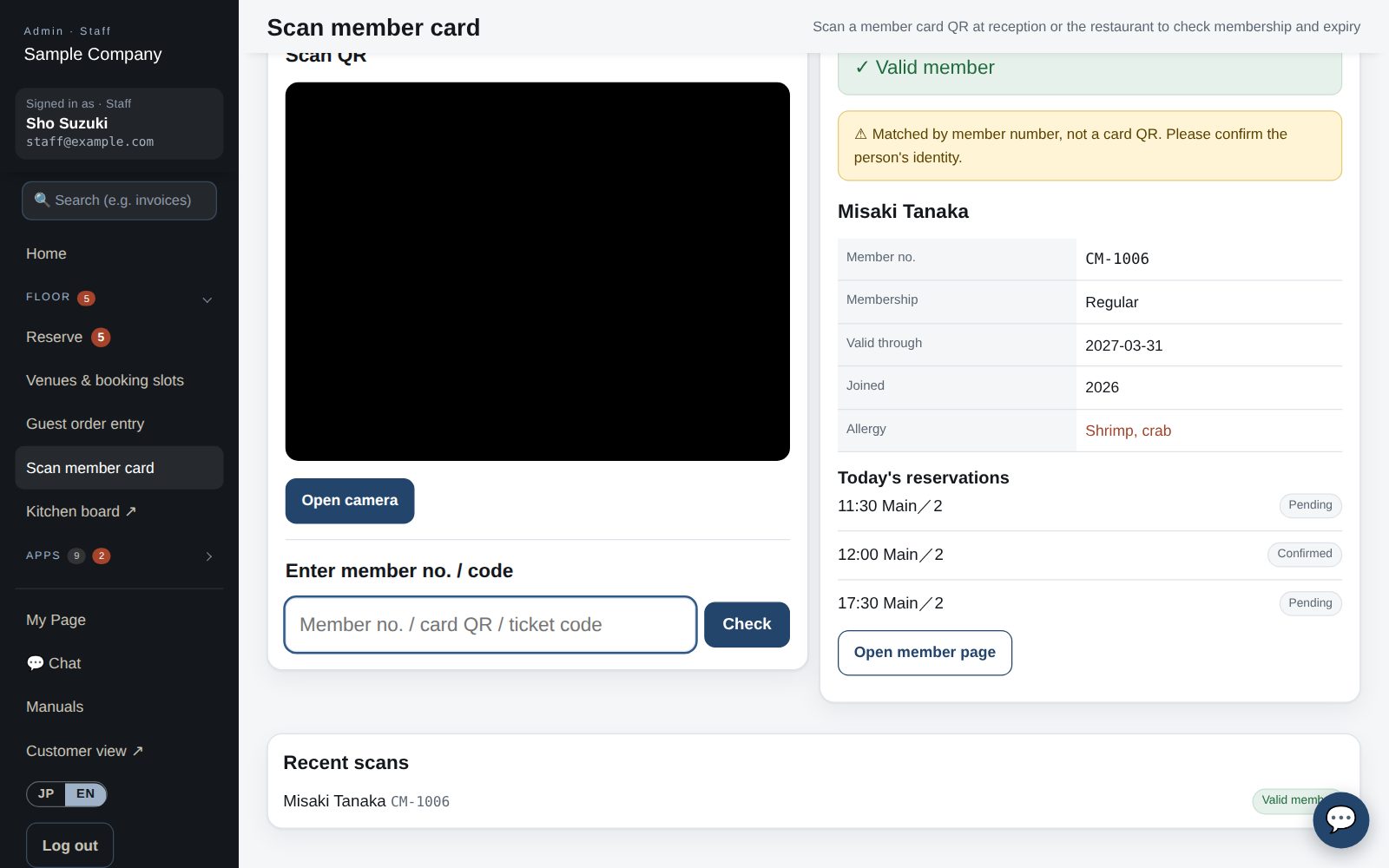
Scanning member cards and event tickets
- App: My Page → Staff → “Scan QR”. The first time, allow camera access.
- In “Member card” mode, hold the card’s QR in the frame: name, number, category, expiry plus today’s RSVPs and reservations appear. Valid = green; expired or withdrawn = red.
- For event check-in, select today’s event in the mode row first. Scanning the ticket or member card marks the guest as checked in; scanning twice does not double count.
- If the QR will not scan, type the member number or ticket code in the field below and tap “Check”. The card QR includes the organization, so a card from another organization shows “belongs to another organization” and is not accepted. A QR containing only a number is not accepted either; type the number instead.
- Browser: Office site → Scan member card (/admin/scan). Event check-in is also under Events → “Check-in”.
Member app & web
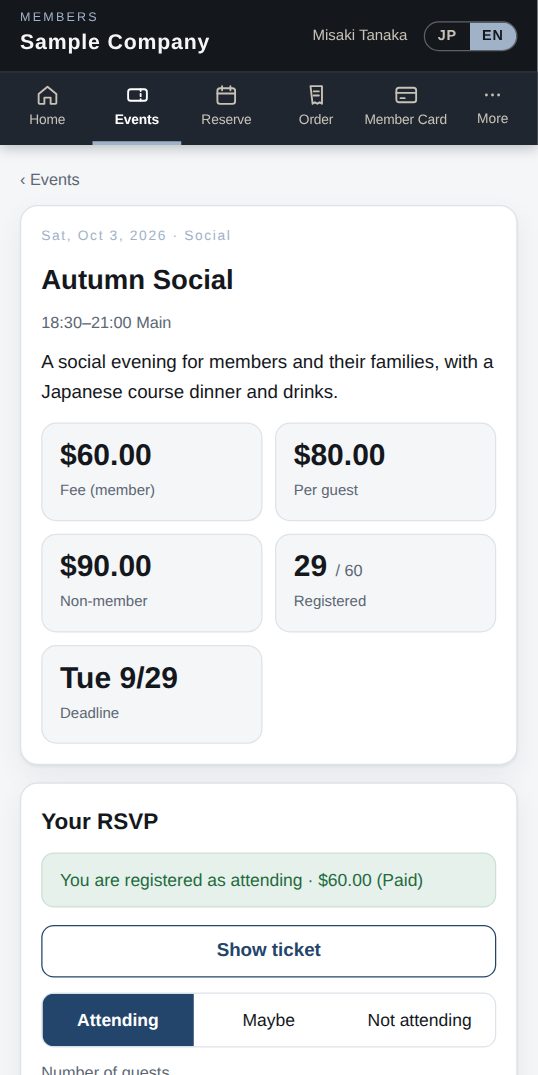
Events and RSVP
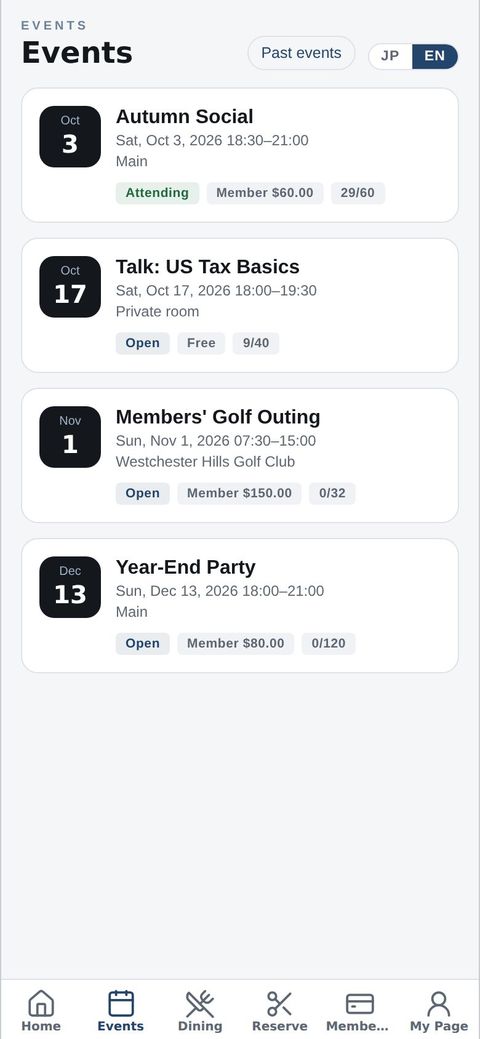
- The Events tab lists open events by date. Tap one for details: date, venue, fee, deadline and remaining seats.
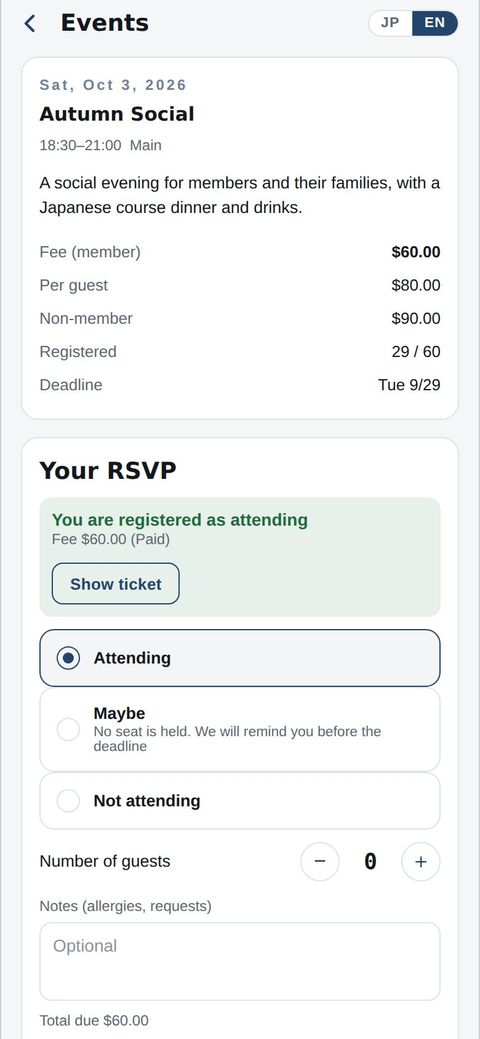
- Choose “Attending”, enter the number of guests and submit. If a guest is not a member, enter their name (the club is required to keep this record).
- Some events have extra fields (meal choice etc.) or sponsorship tiers you can apply for.
- After you RSVP a ticket is issued. On the day, show the ticket QR or your member card to check in. Fees are added to your statement or paid as instructed.
- You can change or cancel until the deadline; after that, contact the office.
Start with just the features you need. If nothing fits the way you work, we'll build it for you — free.
QuickBooks and ProConnect are trademarks of Intuit Inc., Stripe of Stripe, Inc. and Square of Block, Inc. This service is not provided or endorsed by these companies.