Member cards (QR)
Show the card in the app — that's it
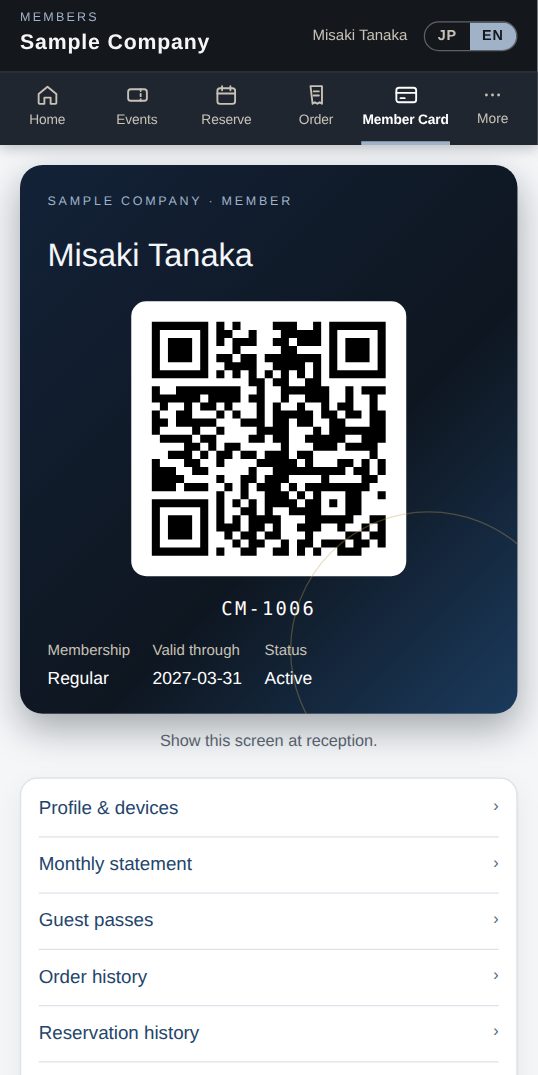
Every member gets a QR member card in the app and on the web. When staff scan it, they see who it is, whether the membership is valid, and today's bookings and RSVPs.
What it does
Just open the card tab; the screen brightens automatically.
Name, number, category and expiry — green when valid, red when expired or resigned.
Pick today's event and scan to check guests in — never counted twice.
Each QR carries your company, so other companies' cards won't pass. Reissue with one click.
How it flows
- 1Member / guestOpen the card
The Member Card tab in the app (or on the web).
- 2StaffScan the QR
With Staff → QR scan in the app, or Scan member card in the admin.
- 3AutomaticVerify
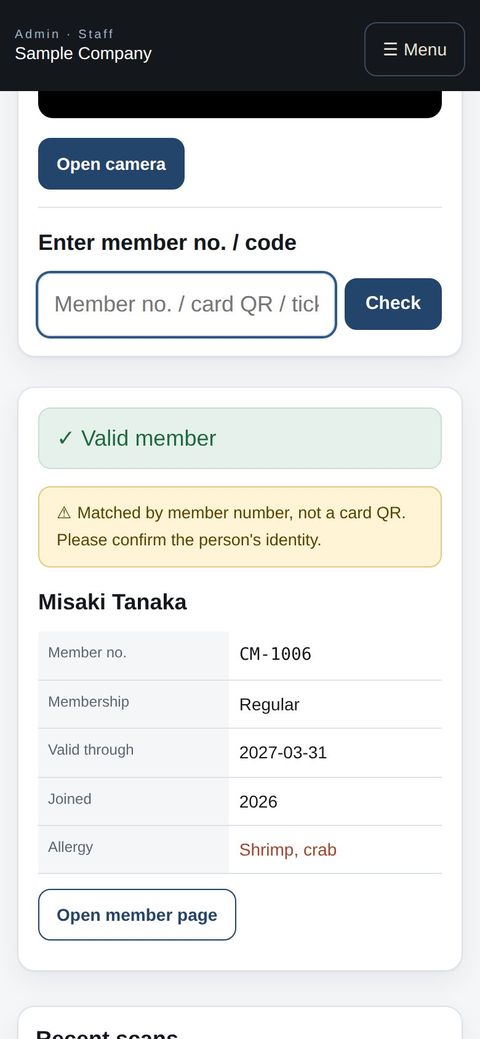
Validity plus today's reservations and event RSVPs appear.
- 4StaffWelcome in
For events they're checked in on the spot; if a code won't scan, type the number.
On phones & in the app
The member card lives in the app's Card tab. Front-desk staff scan the QR or type the member number on a phone and see right away whether the membership is valid.
- 📱CLT Members iPhone appOne app for members, staff and managers.
- 🌐Phone browserNo install needed — Android too.
- 💻ComputerThe same data on a big screen.
See the screens
Staff screens
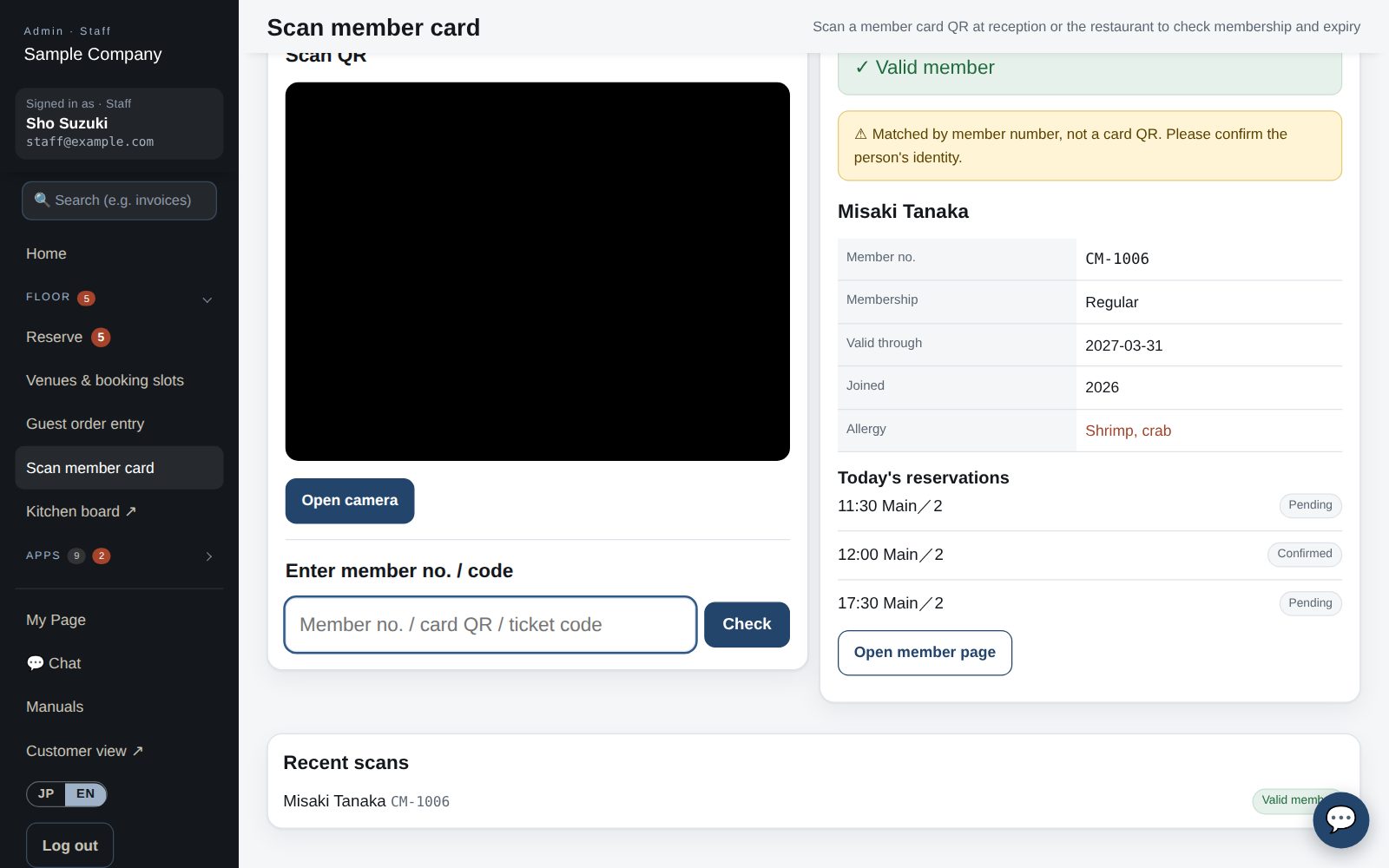
Scanning member cards and event tickets
- App: My Page → Staff → “Scan QR”. The first time, allow camera access.
- In “Member card” mode, hold the card’s QR in the frame: name, number, category, expiry plus today’s RSVPs and reservations appear. Valid = green; expired or withdrawn = red.
- For event check-in, select today’s event in the mode row first. Scanning the ticket or member card marks the guest as checked in; scanning twice does not double count.
- If the QR will not scan, type the member number or ticket code in the field below and tap “Check”. The card QR includes the organization, so a card from another organization shows “belongs to another organization” and is not accepted. A QR containing only a number is not accepted either; type the number instead.
- Browser: Office site → Scan member card (/admin/scan). Event check-in is also under Events → “Check-in”.
Member app & web
Member card
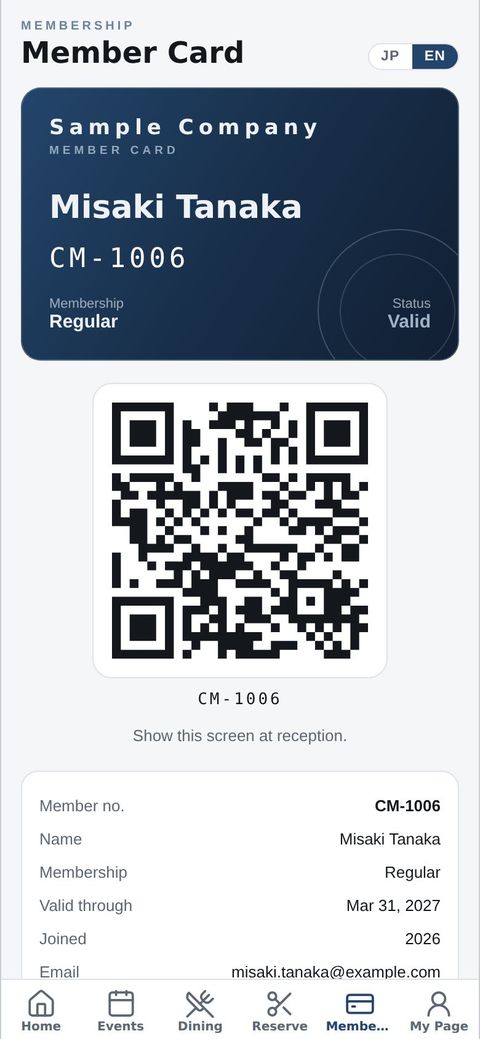
- The Member Card tab shows your digital card: name, member number, category, expiry and a QR code.
- Show the QR to staff at reception or the restaurant. Scanning it confirms your membership and expiry.
- In the app the screen brightens automatically while the card is shown. Your plastic card remains valid.
Start with just the features you need. If nothing fits the way you work, we'll build it for you — free.
QuickBooks and ProConnect are trademarks of Intuit Inc., Stripe of Stripe, Inc. and Square of Block, Inc. This service is not provided or endorsed by these companies.