Chat
Team messages inside the app — reply from any screen
A chat for everyone on the team — owners, managers and staff. New messages pop up in the corner of whatever screen you're on, so you can reply right there, with attachments. New tasks and approval requests are announced in the same corner. Stuck on how to do something? Ask the “🤖 How-to assistant (AI)” at the top of the list.
What it does
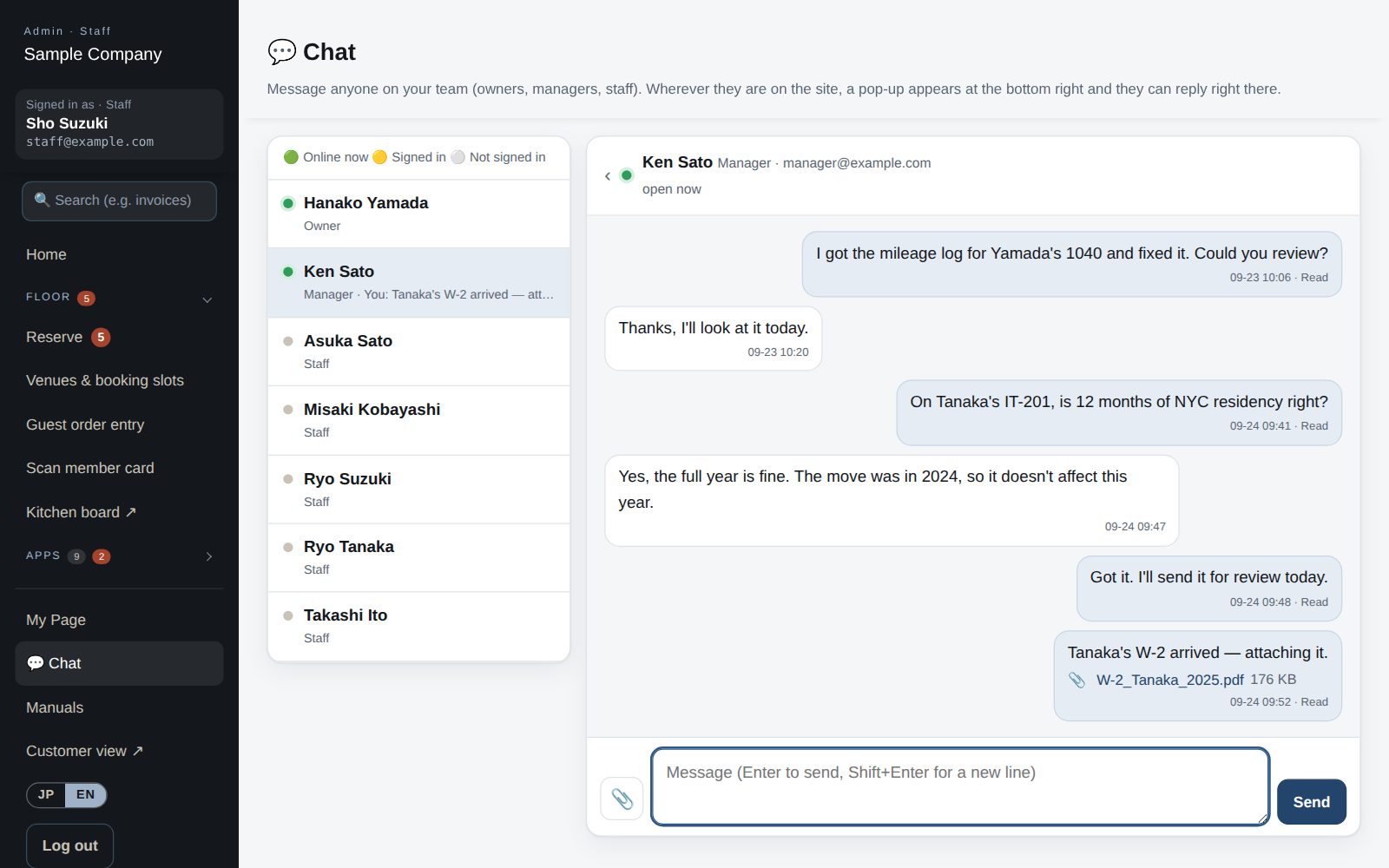
Everyone on the team is listed, with who's online right now.
Reply from the corner without leaving what you're doing (Enter to send).
PDF, images, Office, CSV and ZIP up to 20 MB — visible only to sender and recipient.
New tasks and approval requests appear within 15 seconds with a 🔔 — no reload needed.
How it flows
- 1StaffPick someone and send
From 💬 Chat in the menu or the 💬 button, with attachments if needed.
- 2AutomaticIt pops up for them
In the corner of any screen, with an unread count in the menu.
- 3OfficeReply in place
Type in the pop-up and press Enter; 📎 for files.
- 4AutomaticWork alerts too
New tasks and approvals ring a 🔔 and open lists refresh on their own.
On phones & in the app
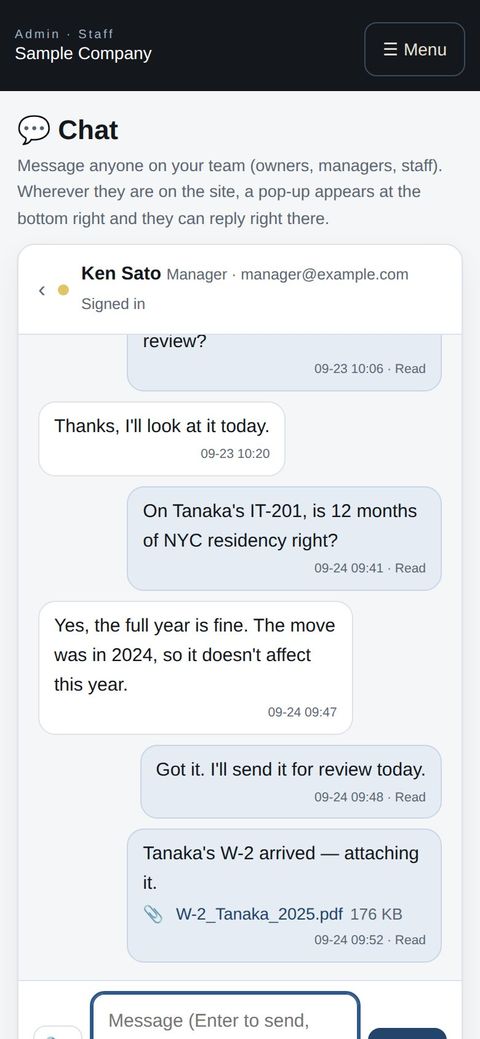
Chat works the same way in a phone browser. Reply to teammates and attach documents even when you're out.
- 🌐Phone browserNo install needed — Android too.
- 💻ComputerThe same data on a big screen.
See the screens
Admin (office)
Chat (within your team)
- Open it from “💬 Chat” in the left menu or the 💬 at the bottom right of any screen. Message any owner, manager or staff member of the company (members never see it). Dots show 🟢 online now, 🟡 signed in, ⚪ not signed in.
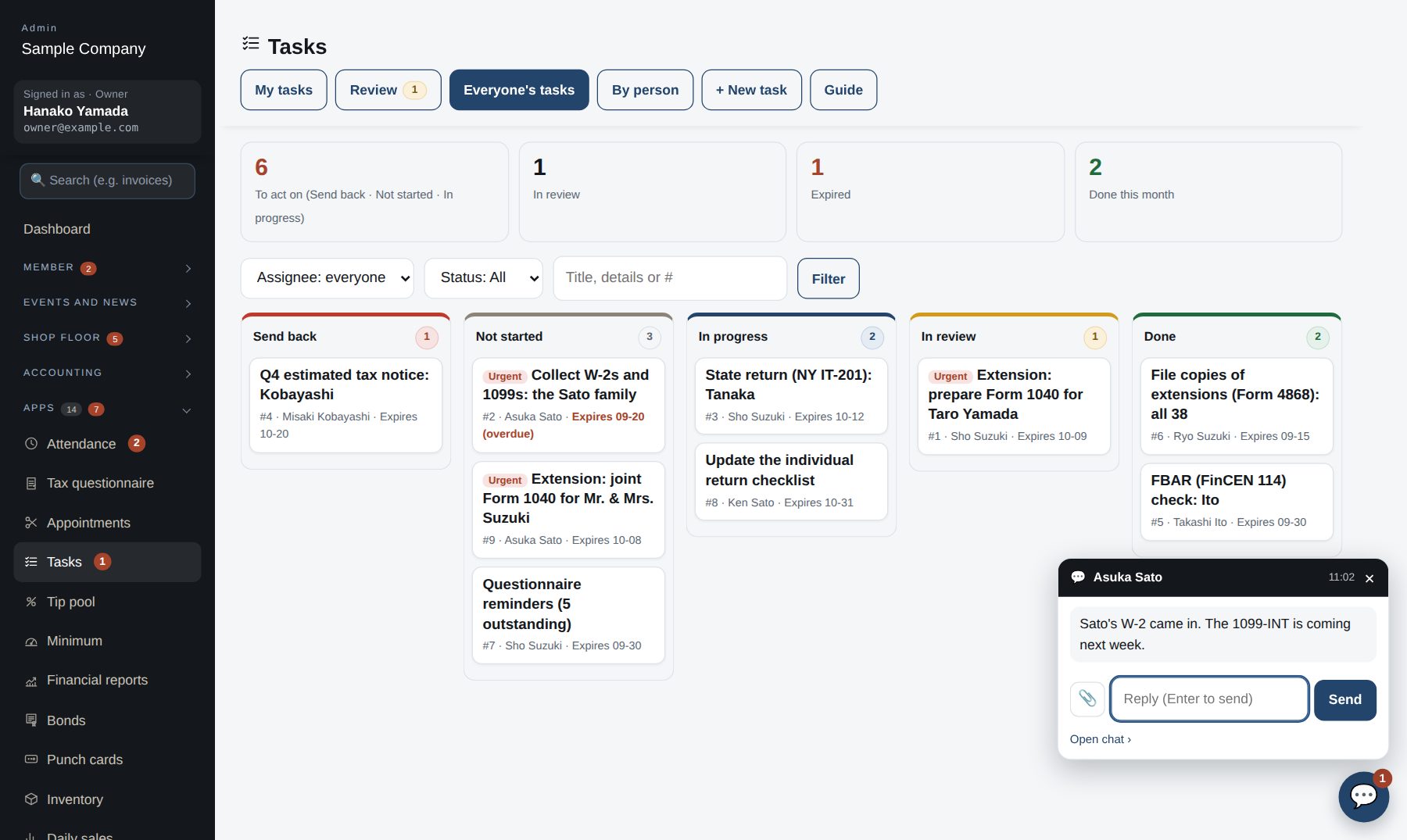
- When a message arrives, a pop-up appears at the bottom right of whatever screen you are on and you can reply right there (Enter to send). The unread count shows on the 💬 and in the left menu. People who are signed out see it the next time they open the site. No emails are sent.
- Attach a file with 📎 (PDF, image, Office, CSV or ZIP, up to 20 MB; on the chat screen you can also drag and drop). Images show as thumbnails. Only the sender and the recipient can open it.
- Press “Also show desktop notifications” on the chat screen to be notified even while you are in another tab.
- When it is switched on, ask the “🤖 How-to assistant (AI)” at the top of the list how to do something (“How do I …?”). It answers from this guide, within the screens you can open, and links to the relevant section. If the guide doesn't cover it, it says so. No member or customer data is shared with the AI.
Staff screens
Chat (within your team)
- Open it from “💬 Chat” in the left menu or the 💬 at the bottom right of any screen. Message any owner, manager or staff member of the company (members never see it). Dots show 🟢 online now, 🟡 signed in, ⚪ not signed in.
- When a message arrives, a pop-up appears at the bottom right of whatever screen you are on and you can reply right there (Enter to send). The unread count shows on the 💬 and in the left menu. People who are signed out see it the next time they open the site. No emails are sent.
- Attach a file with 📎 (PDF, image, Office, CSV or ZIP, up to 20 MB; on the chat screen you can also drag and drop). Images show as thumbnails. Only the sender and the recipient can open it.
- Press “Also show desktop notifications” on the chat screen to be notified even while you are in another tab.
- When it is switched on, ask the “🤖 How-to assistant (AI)” at the top of the list how to do something (“How do I …?”). It answers from this guide, within the screens you can open, and links to the relevant section. If the guide doesn't cover it, it says so. No member or customer data is shared with the AI.
Start with just the features you need. If nothing fits the way you work, we'll build it for you — free.
QuickBooks and ProConnect are trademarks of Intuit Inc., Stripe of Stripe, Inc. and Square of Block, Inc. This service is not provided or endorsed by these companies.