Inventory
Receipts, issues and counts to monthly variance and valuation
Record stock in and out, enter counts, and the monthly report shows opening, receipts, issues, expected stock, counted stock, variance and closing value. Month-end counts email a report automatically.
What it does
Bulk-load items with opening stock from CSV.
Unit cost on receipt; issues valued at average cost.
Enter counts and variance is calculated.
Category totals and CSV for accounting.
How it flows
- 1StaffRecord movements
Date, type, item and quantity.
- 2StaffCount stock
Use the month-end count at month end.
- 3AutomaticReport sent
A completion email goes to the listed recipients.
- 4OfficeReview the month
Expected stock, variance and closing value.
On phones & in the app
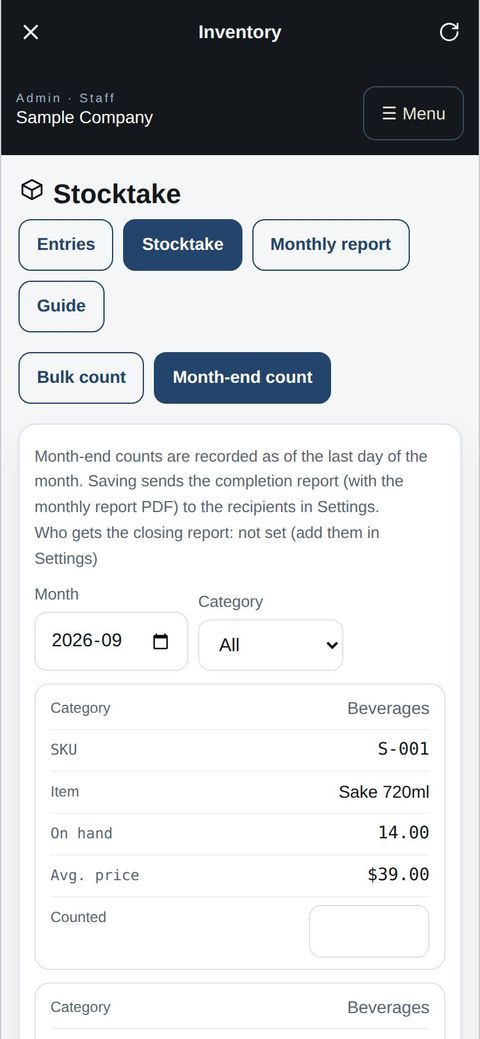
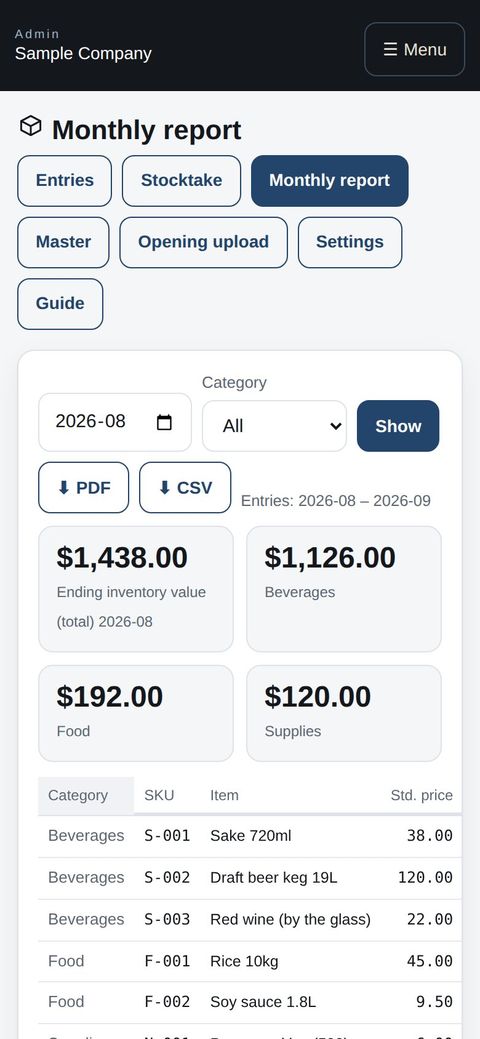
Take stock with a phone in hand, right at the shelf: open Inventory from the work apps in the app and enter the counts. The monthly report reads fine on a phone too.
- 📱CLT Members iPhone appOne app for members, staff and managers.
- 🌐Phone browserNo install needed — Android too.
- 💻ComputerThe same data on a big screen.
See the screens
Admin (office)
Register items and categories
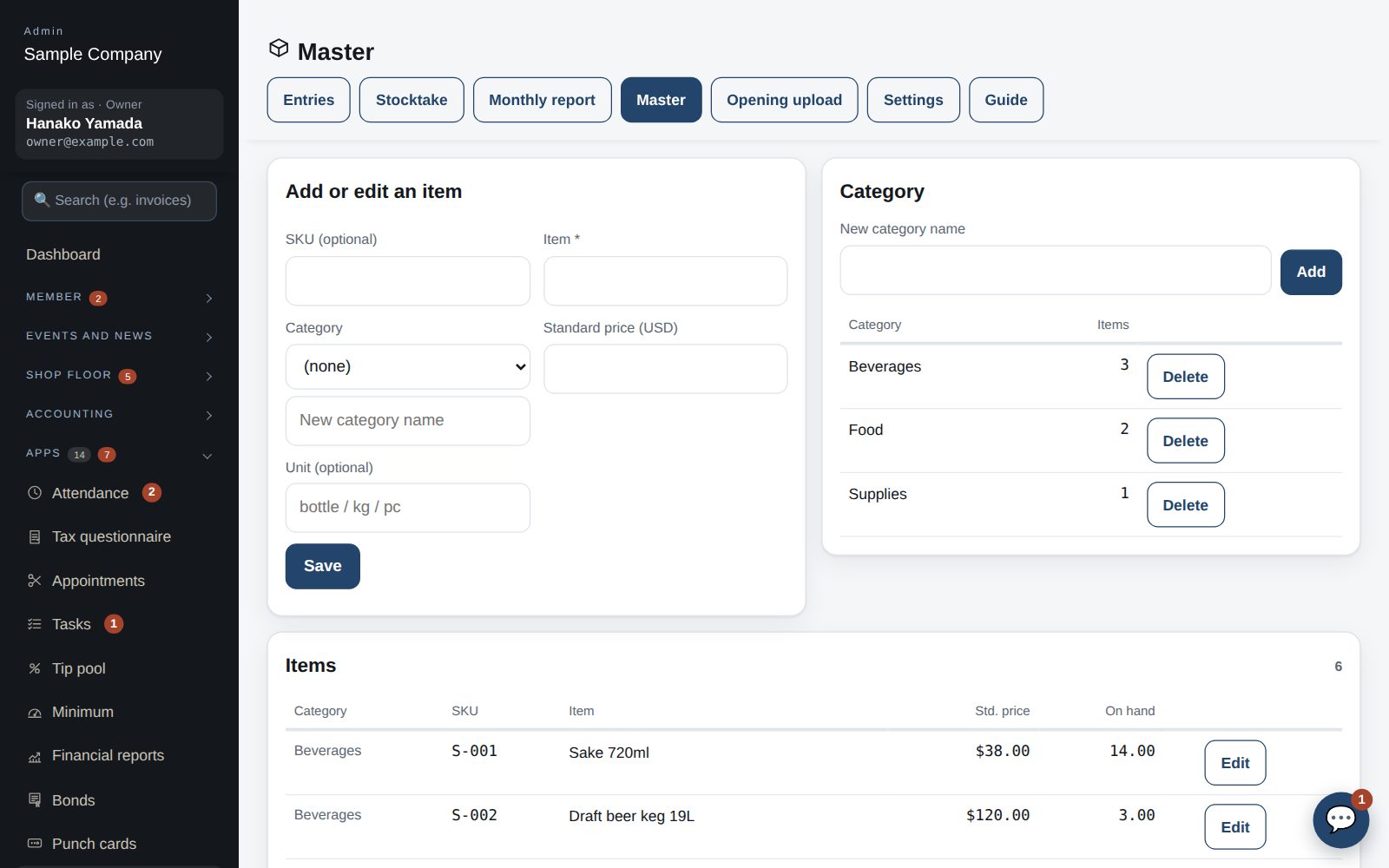
- Under Admin → Apps → Inventory → Master, first create categories (liquor, food …), then register items. SKU is optional; the standard price is used when a stock-in has no price.
- With many items, use “Opening upload” to load them from a CSV at once (the opening stock is set at the same time).
- Mark unused items “Inactive” to hide them from entry screens (history is kept). Deleting an item deletes all its entries — be careful.
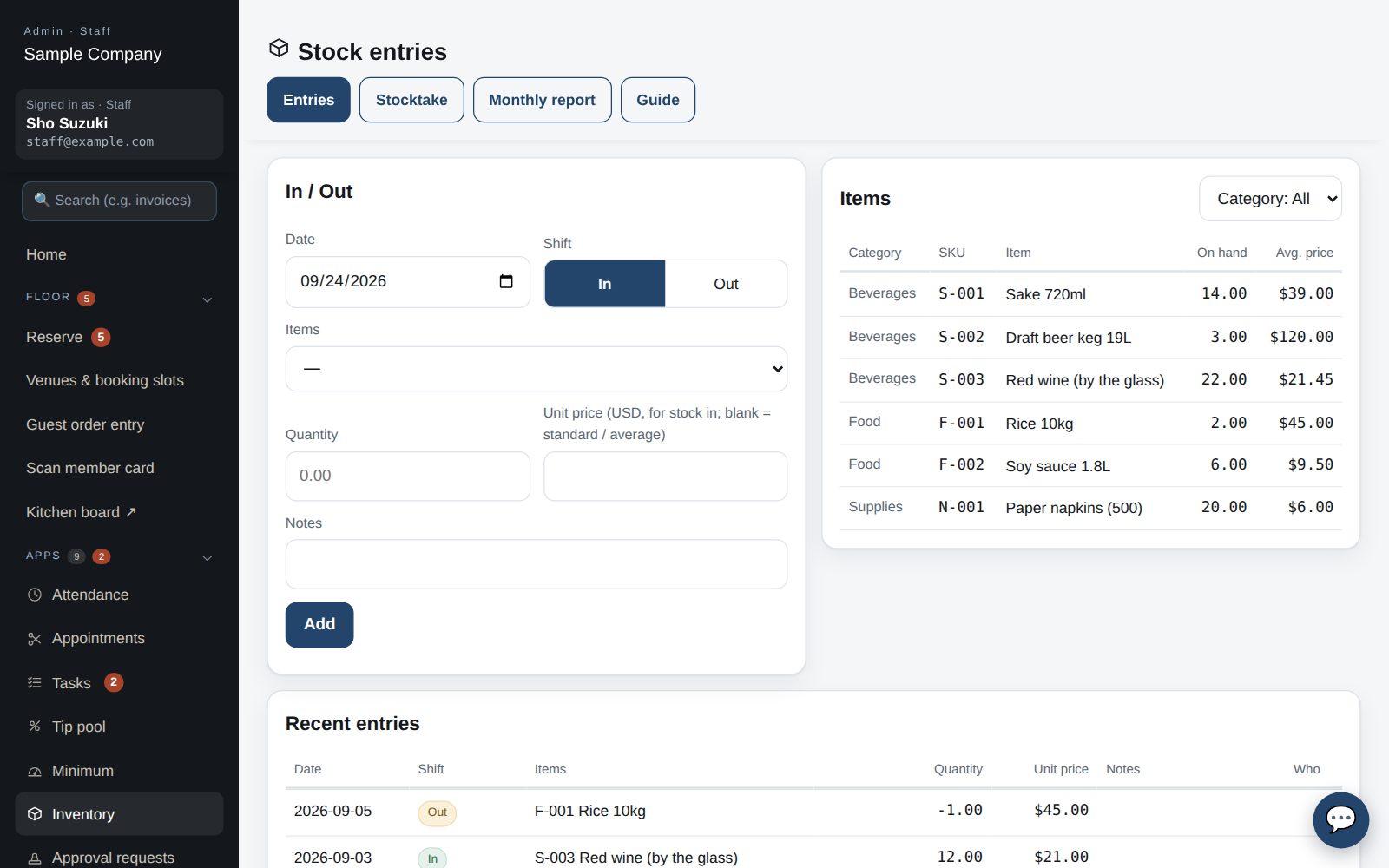
Enter stock in / out
- Under “Entries” enter the date, type (in / out), item and quantity. Filter items by category.
- For stock in you can enter a unit price; blank means the standard or the running average price. Stock out is valued at the average price.
- “Recent entries” below shows who entered what and when. To fix a mistake, delete the entry and re-enter it.
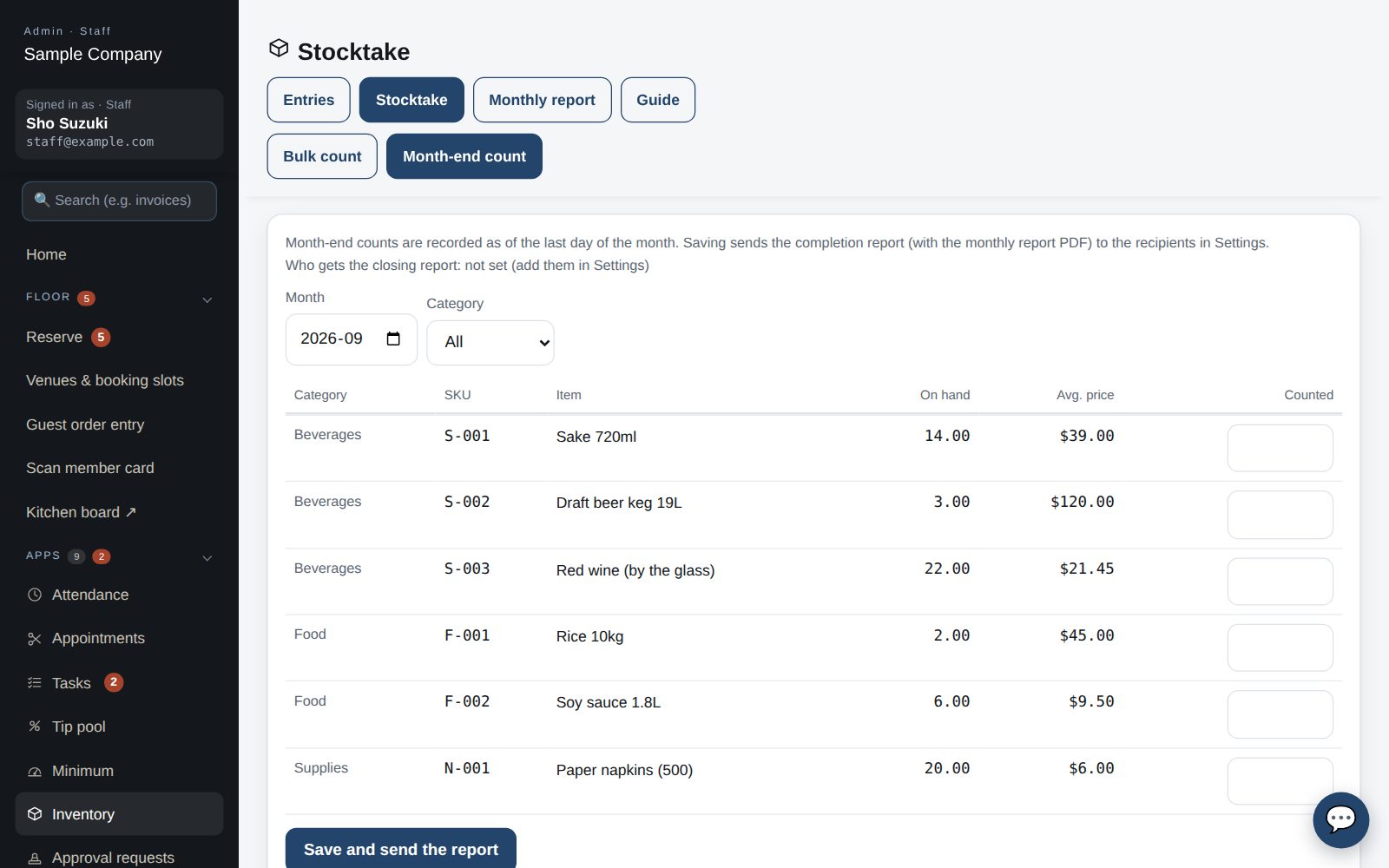
Stocktake
- Under “Stocktake → Bulk count” enter the counted quantity per item and save. Blank items are left alone; the difference is computed.
- At month end use “Month-end count”: pick the month and it is recorded on the last day; saving also emails the completion report to the recipients in Settings.
Monthly report
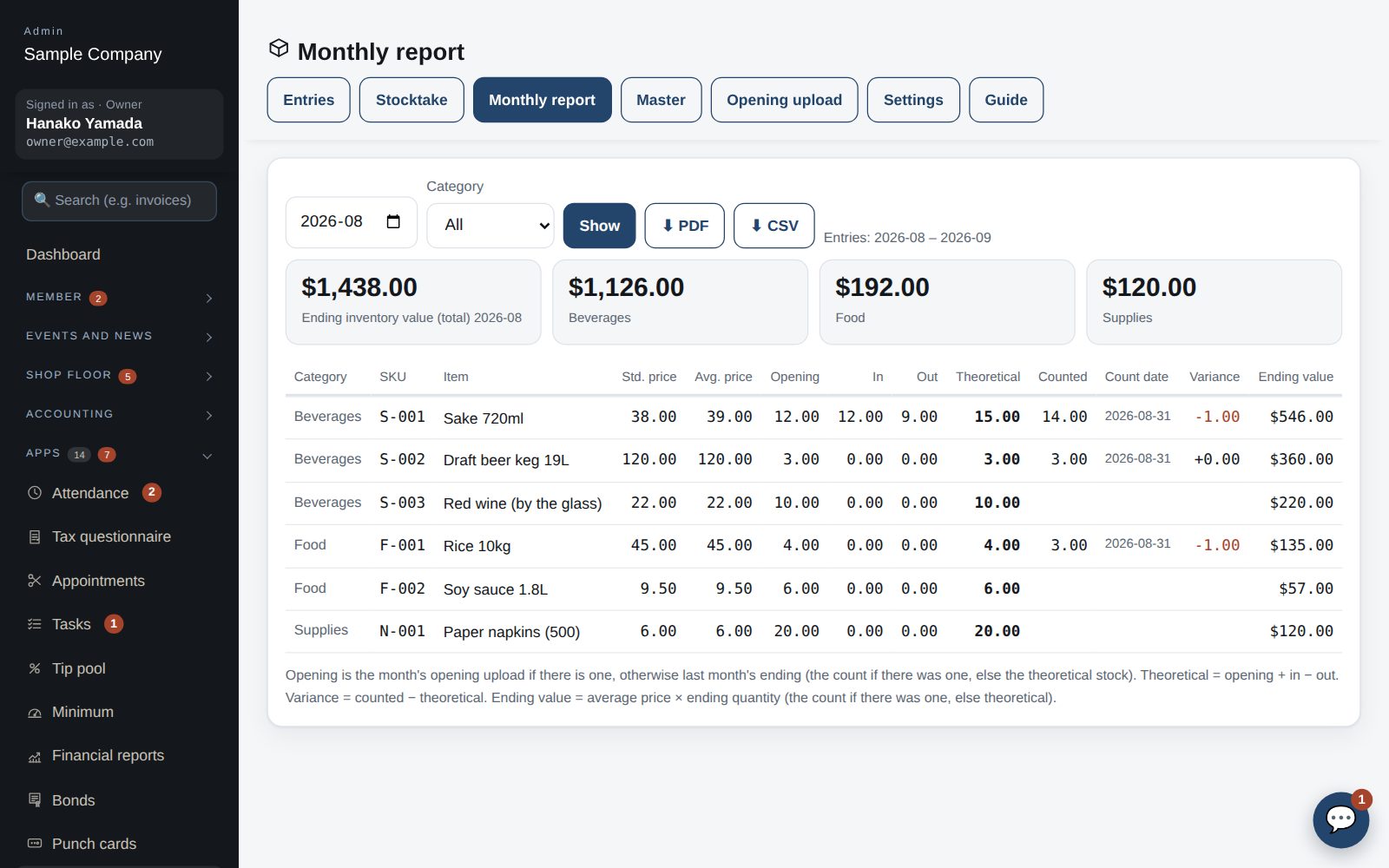
- Under “Monthly report” choose the year and month. Per item you get opening, in, out, theoretical, counted, variance and ending value, plus totals by category.
- Opening is the month's opening upload if any, otherwise last month's ending. Theoretical = opening + in − out; variance = counted − theoretical.
- Ending value = average price × ending quantity (the count if there was one, else theoretical). Download as CSV for accounting.
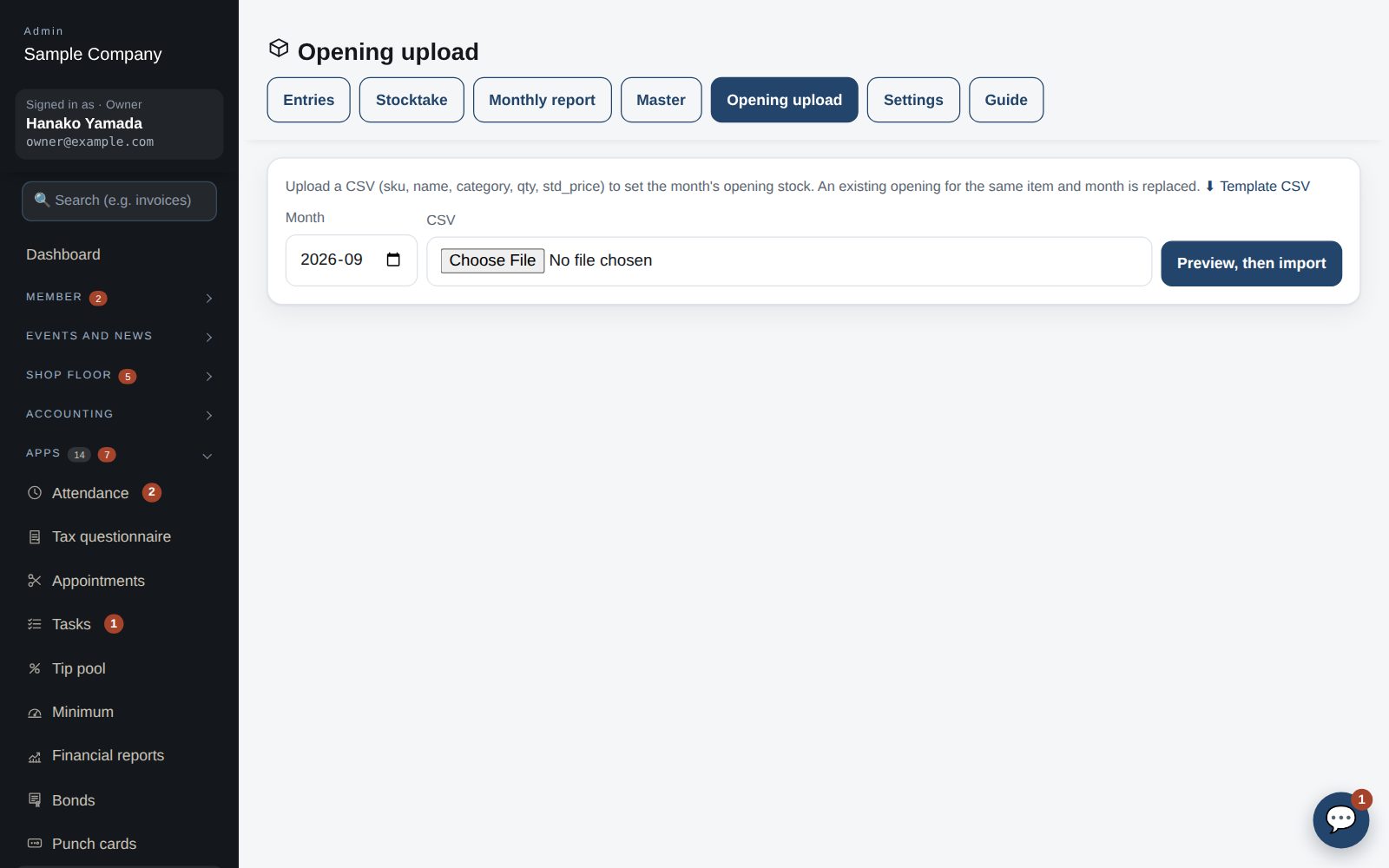
Opening upload
- Use it when starting out, or to reset the opening stock in one go. Fill in the template CSV (sku, name, category, qty, std_price) and upload it.
- The preview shows how many items are new or existing before importing. An existing opening for the same item and month is replaced. The same file cannot be imported twice.
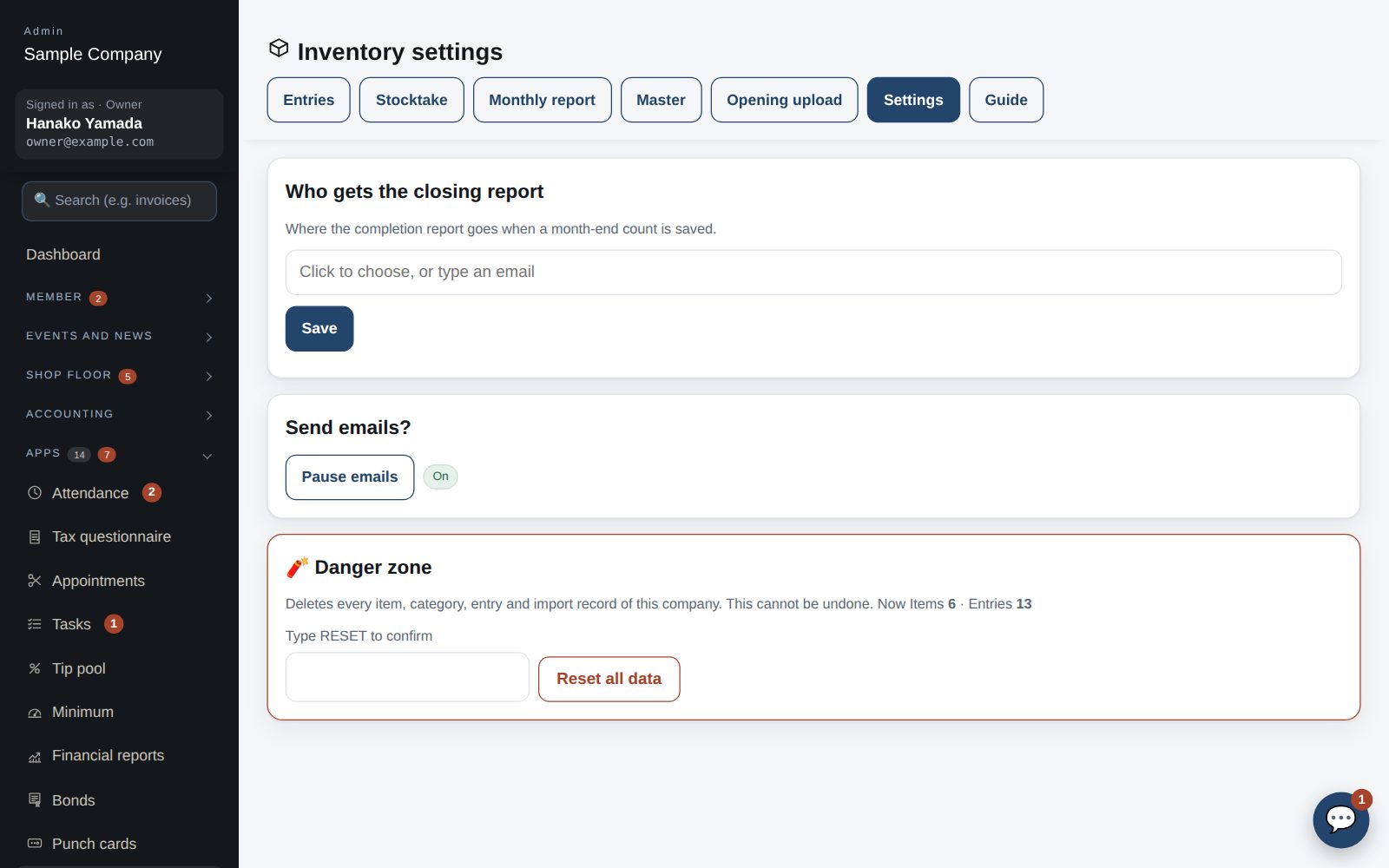
Settings
- Enter the recipients (comma-separated) for the month-end report. “Pause emails” stops the reports.
- The company-wide “Email recipients (safety switch)” (Settings → Email) also applies.
- Danger zone (owner only): deletes every item, category and entry. Type RESET to run.
Start with just the features you need. If nothing fits the way you work, we'll build it for you — free.
QuickBooks and ProConnect are trademarks of Intuit Inc., Stripe of Stripe, Inc. and Square of Block, Inc. This service is not provided or endorsed by these companies.