Invoices (approval & payment)
Route incoming bills for approval and track them to payment
Upload a bill as PDF or photo and the amount and due date are read for you. Approvers get an email with a no-login review link. Approved bills wait in the unpaid list until you record payment — with a vendor ledger built in.
What it does
Amount and due date suggested from PDF, PNG, JPG or HEIC.
One single-use link per approver, valid for 7 days.
An unpaid list by due date; paid bills move to history, with CSV.
Payment methods, accounts and W-9s; account numbers are encrypted and masked.
How it flows
- 1StaffUpload the bill
Confirm vendor, amount, due date and approvers, then submit.
- 2AutomaticApprovers notified
With a review link; the pending count shows in the menu.
- 3OfficeApprove or reject
On screen or from the email link.
- 4OfficePay & record
Pay from the unpaid list and mark it paid.
On phones & in the app
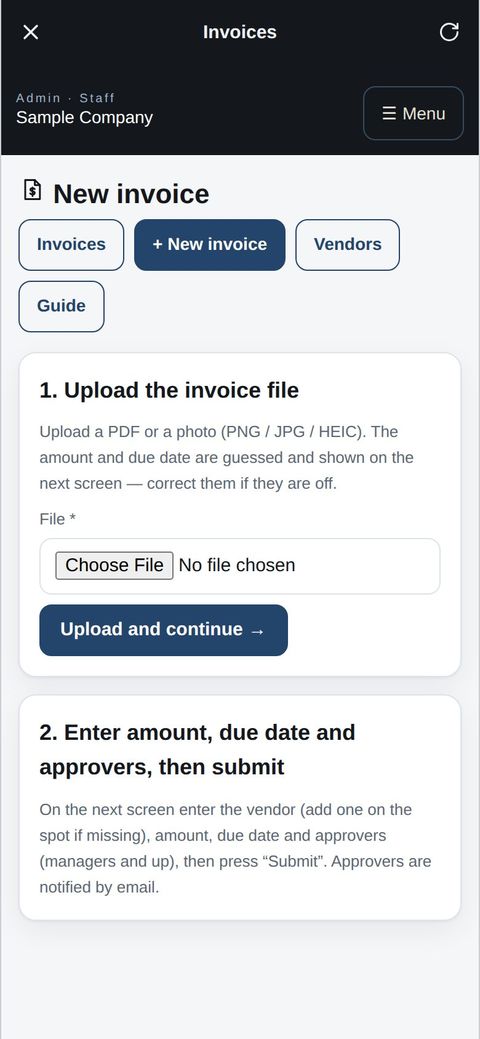
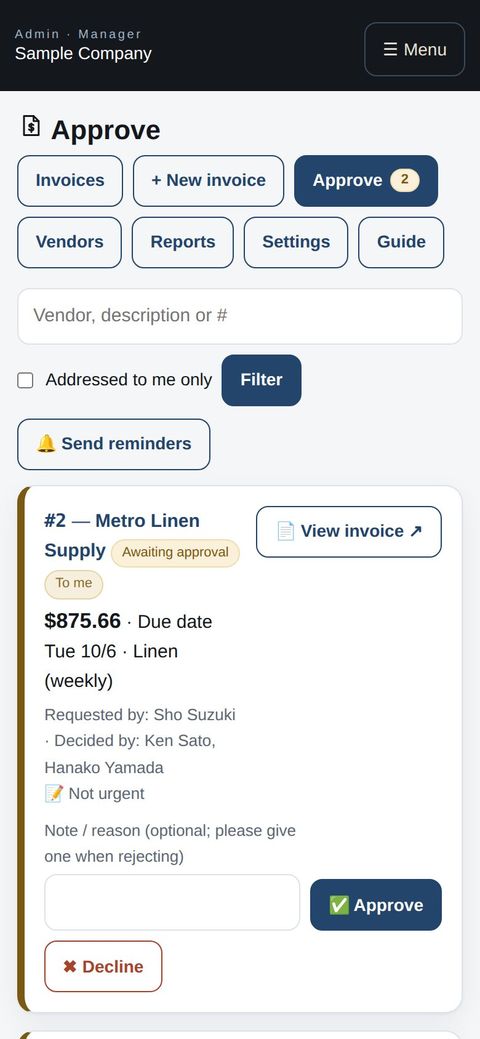
Snap a photo of an incoming bill and upload it from the app. Approvers review it on a phone and approve or decline on the spot.
- 📱CLT Members iPhone appOne app for members, staff and managers.
- 🌐Phone browserNo install needed — Android too.
- 💻ComputerThe same data on a big screen.
See the screens
Admin (office)
The screens
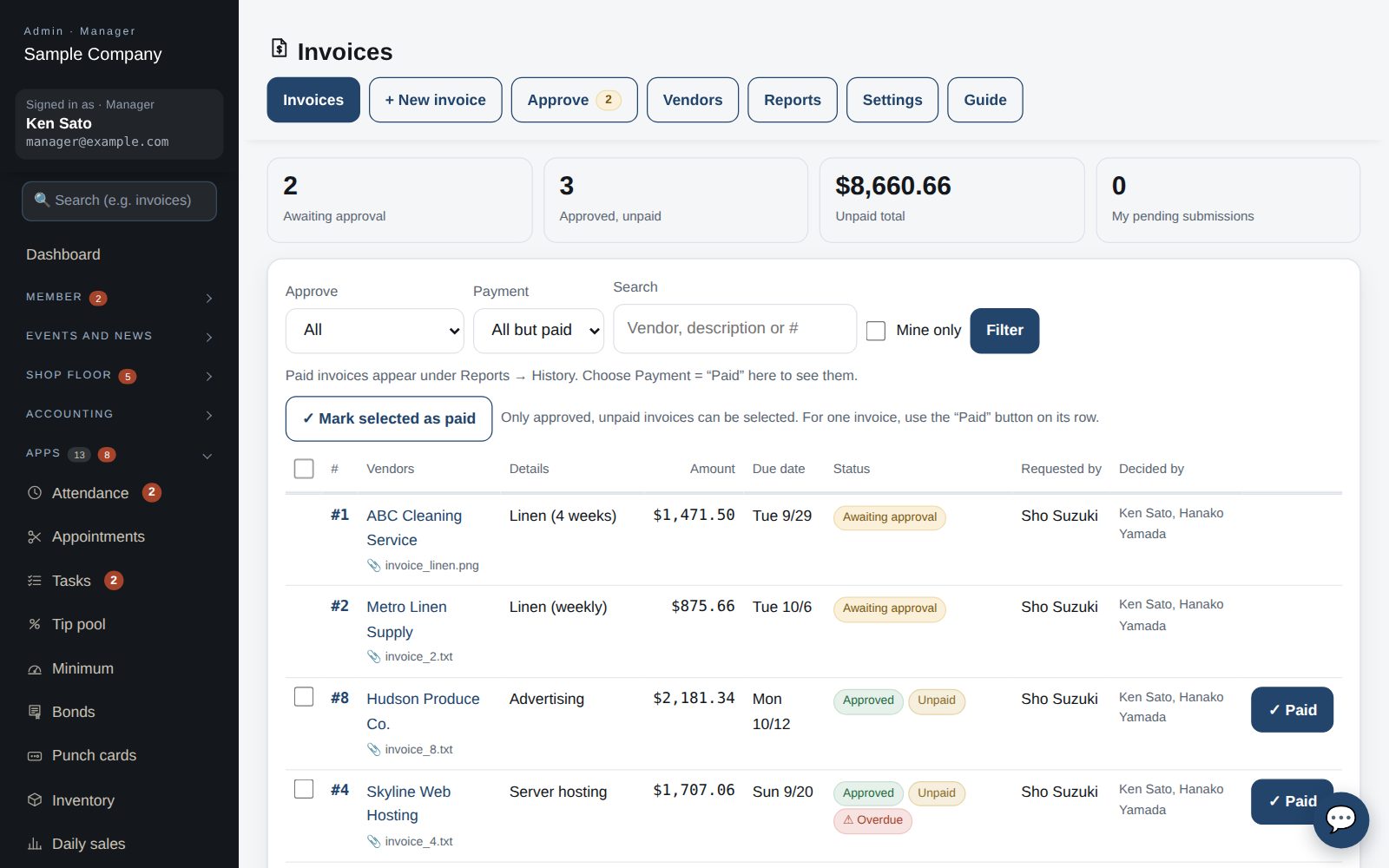
- Open it from Admin → Apps → Invoices. The buttons at the top switch screens: Invoices (list) / New invoice / Approvals / Vendors / Reports / Settings.
- The list is ordered pending → approved → rejected. Paid invoices are hidden (filter Payment = Paid, or use Reports → History).
- Click a number (#) to open the invoice, where you can edit, approve or mark it as paid.
- Who can do what: staff submit invoices and register vendors (bank details hidden). Managers approve, pay, run reports and edit email templates. Owners can do everything, including a full data reset.
Register vendors
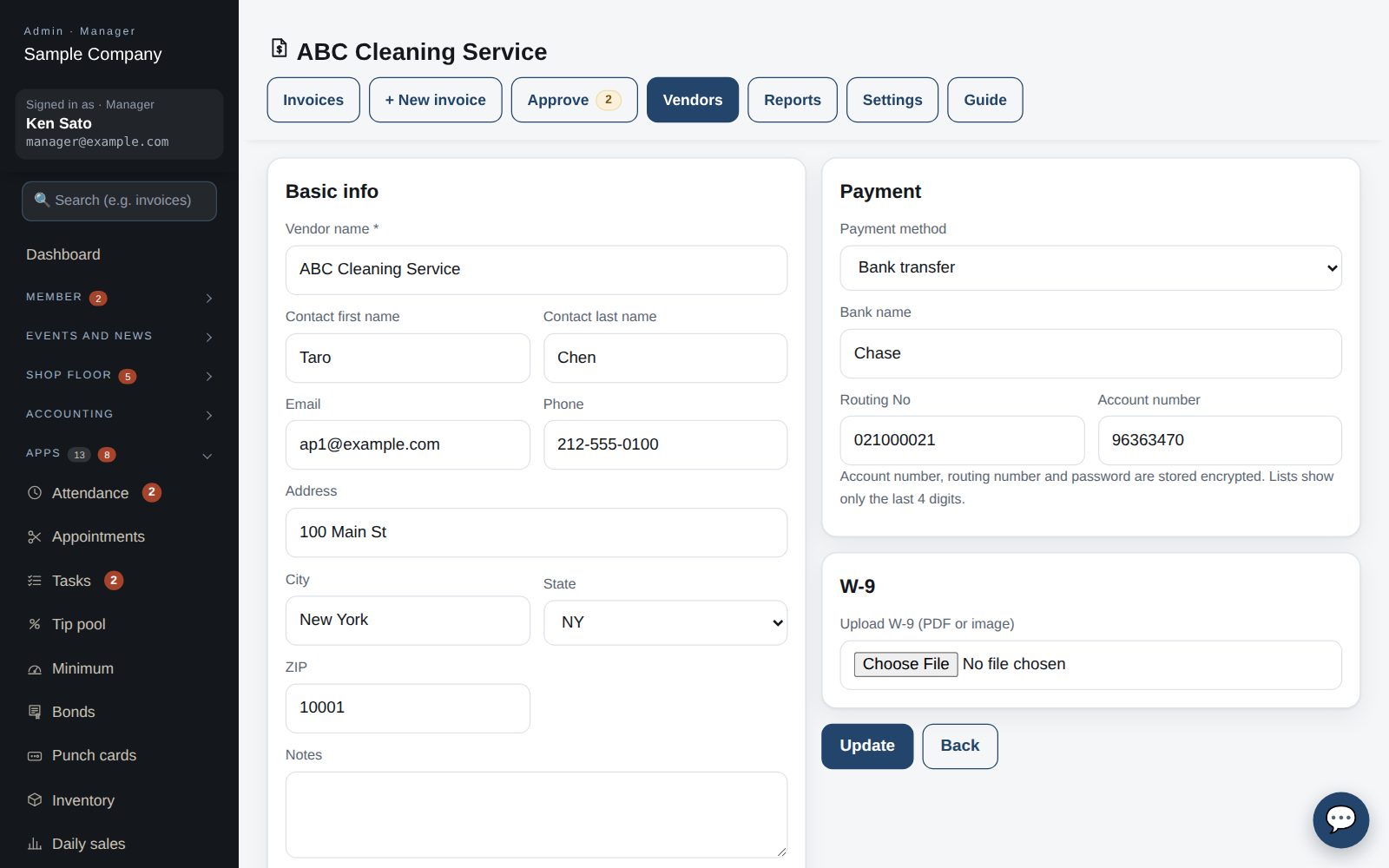
- Under Vendors → Add vendor, a name alone is enough (you can also add one from the invoice screen).
- Address, contact, payment method (bank / check / Zelle / web / other), bank details and W-9 can be added later.
- Account number, routing number and web password are stored encrypted; lists show only the last 4 digits and CSV exports omit them.
- To add many at once use “Import from CSV”: download the template, fill it in with the same columns, then review adds and duplicates on the preview screen.
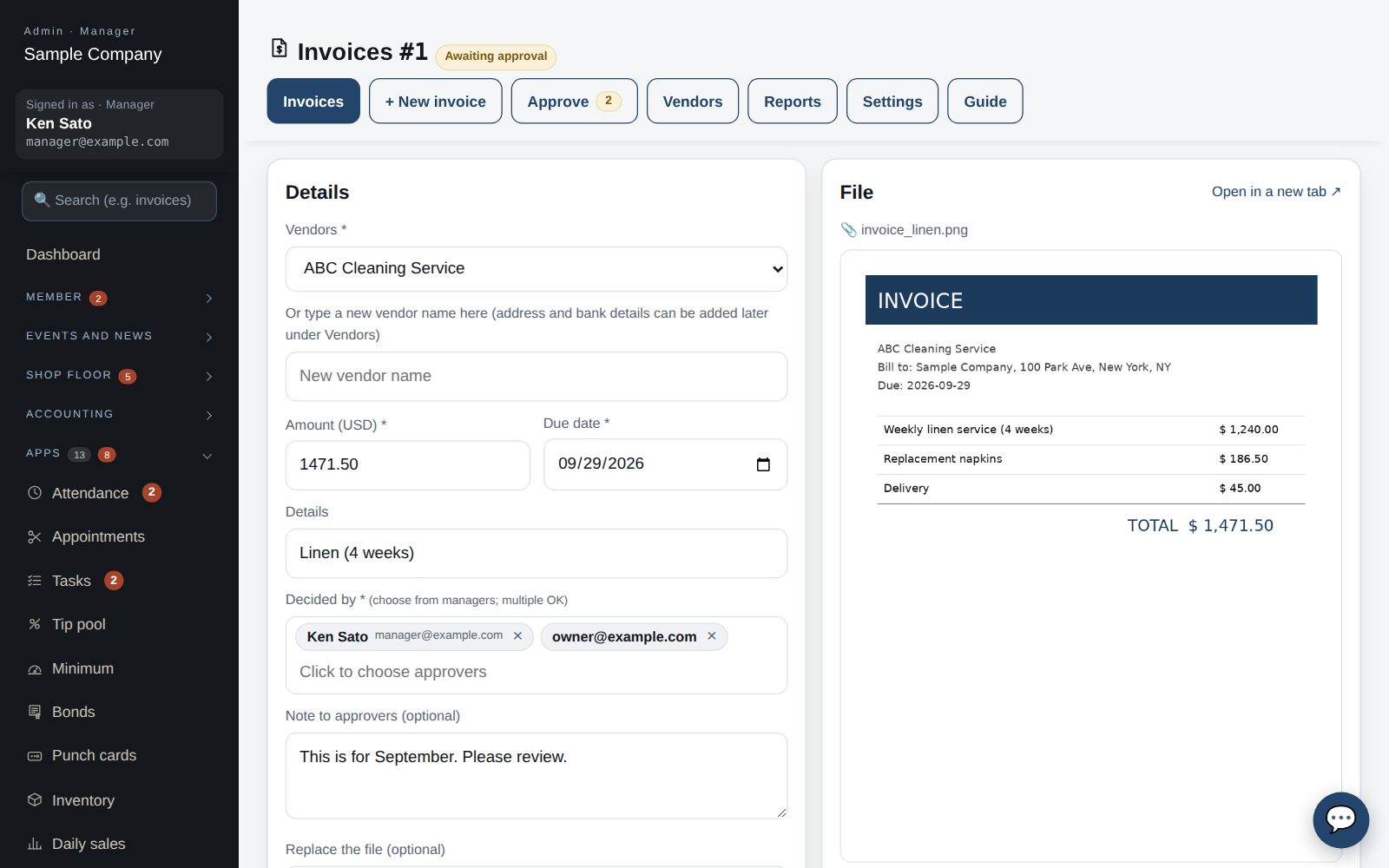
Upload and submit an invoice
- Under “New invoice” upload a PDF or a photo (PNG / JPG / HEIC). The amount and due date are guessed and shown on the next screen.
- Enter the vendor (or type a new name), amount, due date, description, approvers (managers and up, multiple OK) and a note.
- “Submit” makes it pending and emails the approvers (with a no-sign-in review link valid for 7 days). Use “Save as draft” to finish later.
- After submitting, the details and file can still be edited until it is paid (by the submitter or a manager).
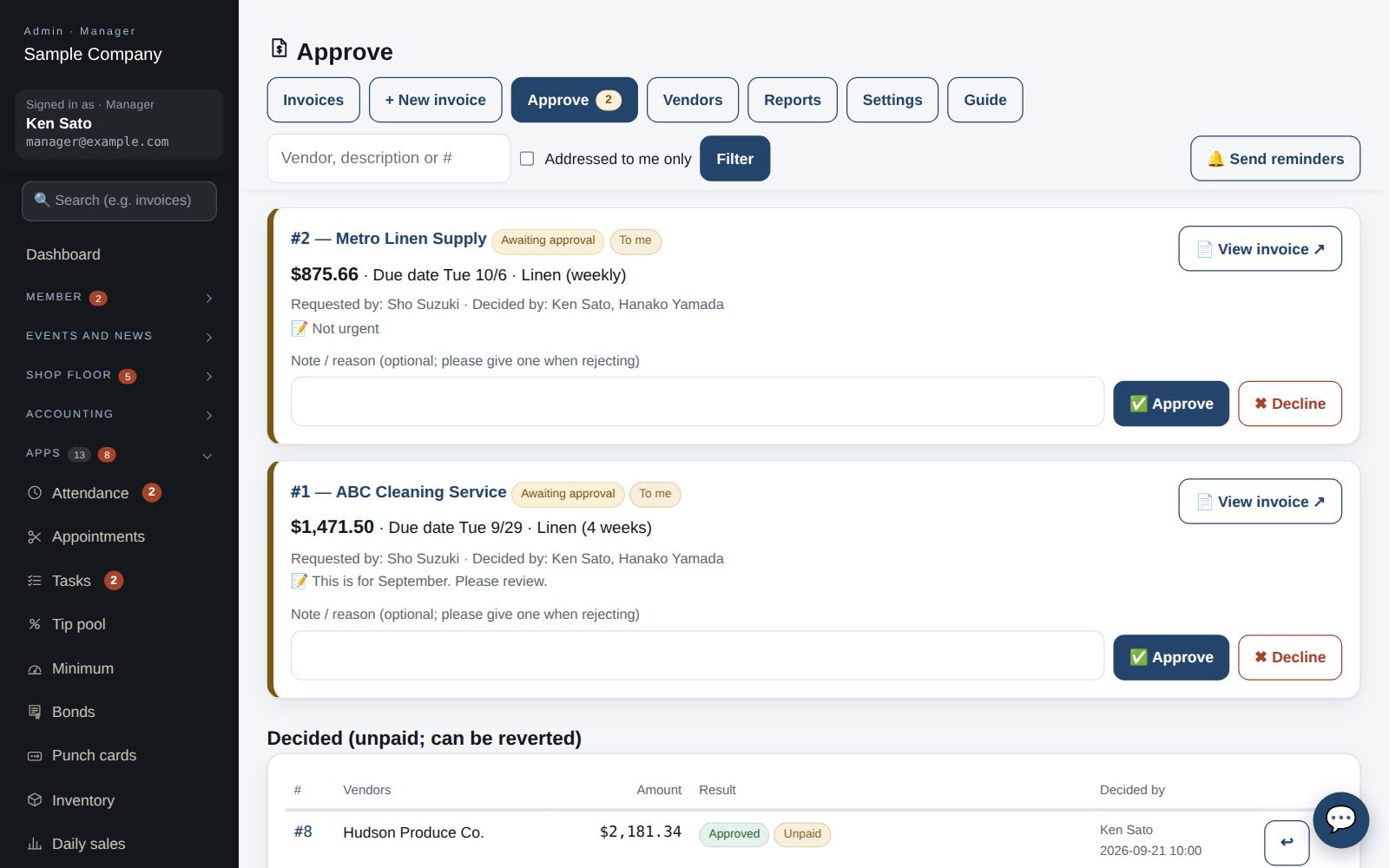
Approve or reject
- Pending invoices appear under “Approvals”; those addressed to you come first with an orange bar. Tick “Addressed to me only” to filter.
- Check the file with “View invoice”, add a note (a reason when rejecting) and press Approve / Reject. The submitter is emailed.
- Only the listed approvers can decide; owners may act on anyone's behalf. Made a mistake? Use ↩ under “Decided” to put it back to pending (no notification).
- Approvers can also decide from the email link (see “Email link” below). “Send reminders” emails everyone who has pending invoices.
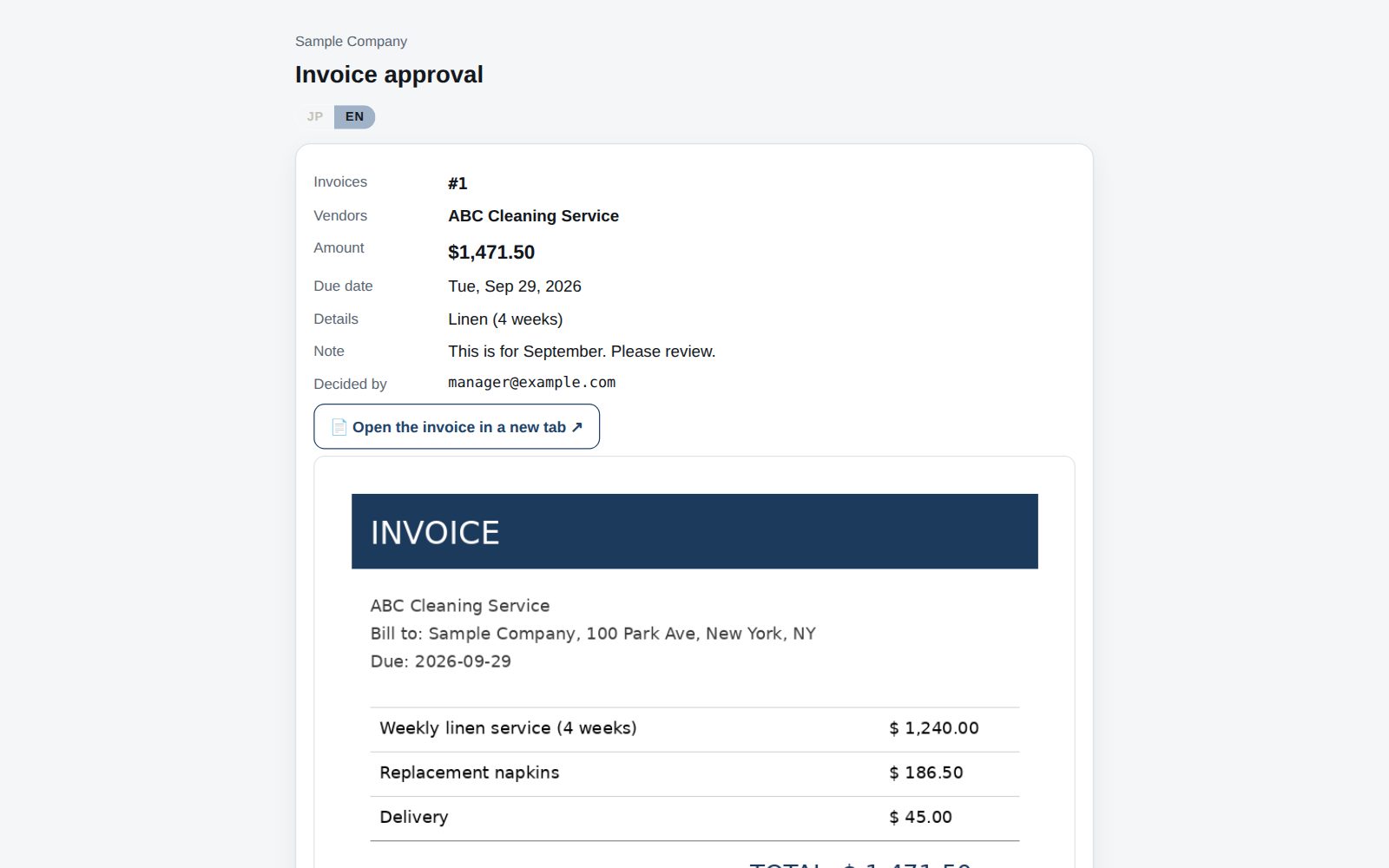
Approving from the email link
- The “Review and approve/reject” link in the email opens a page showing just that invoice. No sign-in is needed.
- Check the file and press “Approve”, or enter a reason and “Reject”. Nothing changes until you press (safe even if a mail scanner opens the link).
- Each approver gets their own single-use link that expires after 7 days. Ask for a reminder if it has expired.
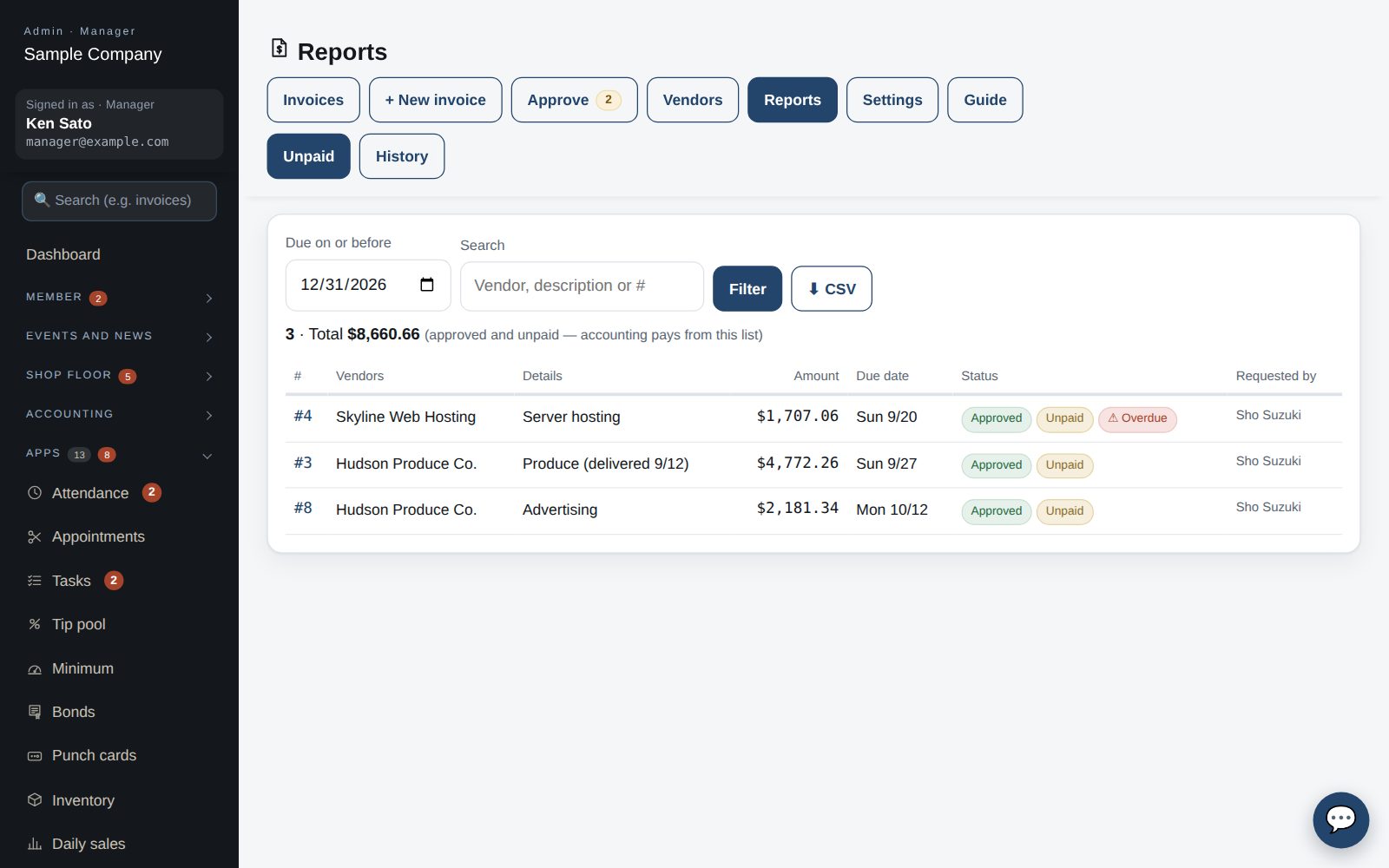
Paying and reports
- “Reports → Unpaid” lists approved, unpaid invoices. Filter by “Due on or before” — accounting pays from this list. CSV export available.
- After paying, open the invoice and press “Mark as paid”. The payment date is recorded and it moves to History. “Back to unpaid” undoes it.
- “Reports → History” filters by period, approval and payment status, with CSV export (for your accounting software).
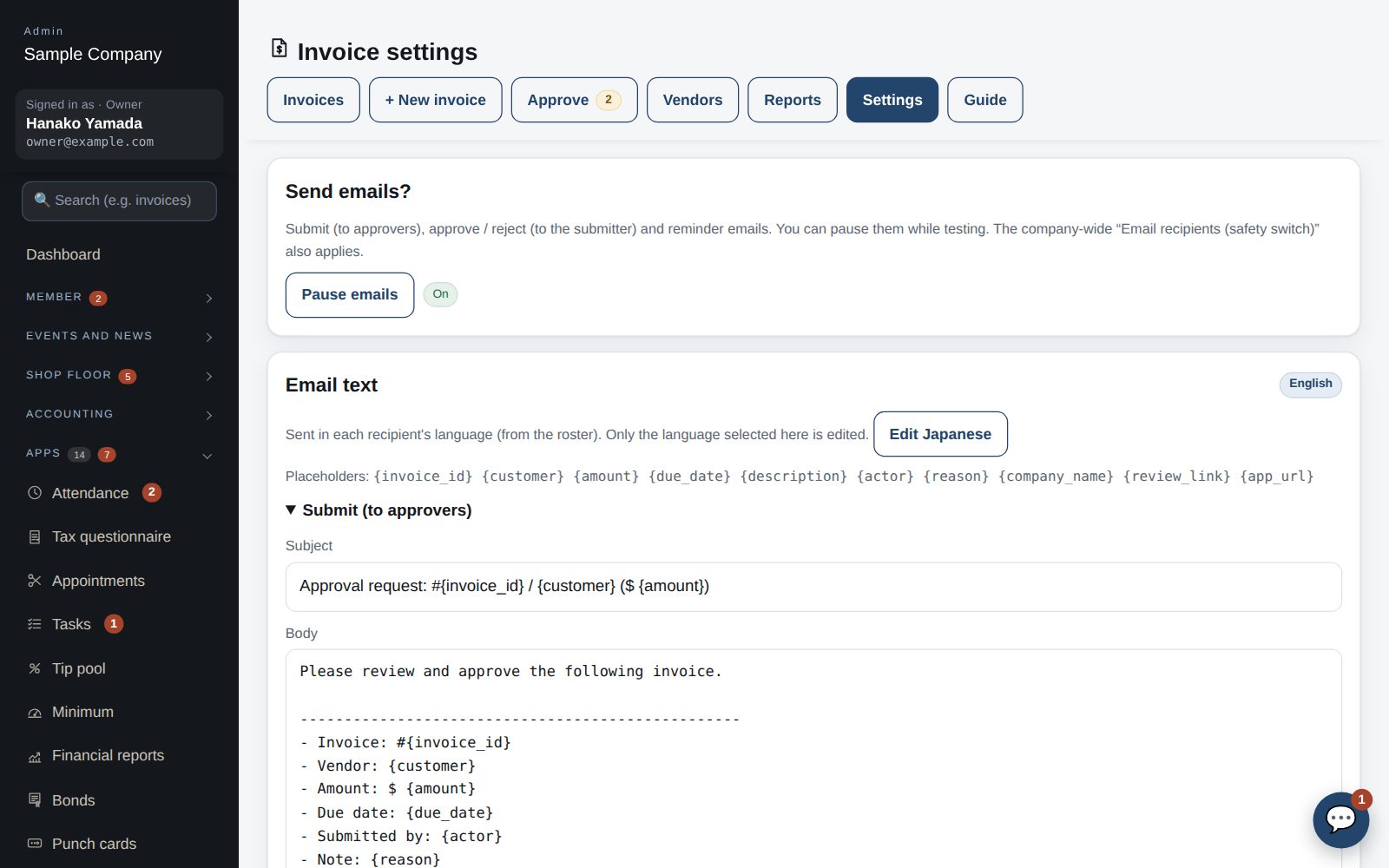
Settings: email
- “Pause emails” stops submit / approve / reject / reminder emails for this company only (useful while testing or right after an import).
- The company-wide “Email recipients (safety switch)” (Settings → Email) also applies: in “Trial” mode only administrators and the allow list receive mail.
- Email templates are edited per language. The current display language is shown; switch with “Edit English” / “Edit Japanese”. Each recipient gets their own language (from the roster).
- Danger zone (owner only): deletes every invoice, vendor, template and file. Type DELETE to run. This cannot be undone.
Start with just the features you need. If nothing fits the way you work, we'll build it for you — free.
QuickBooks and ProConnect are trademarks of Intuit Inc., Stripe of Stripe, Inc. and Square of Block, Inc. This service is not provided or endorsed by these companies.