Tax questionnaire
Paper and Word questionnaires, online — answers and files in one list
Clients fill in what their individual return needs, year by year, on the web or in the app, attaching documents to each item. The firm sees everyone's progress and answers in one list and downloads CSV and files as a ZIP.
What it does
Basics, taxes, income, foreign assets, deductions and other — only relevant questions open up.
Start from last year's answers.
Not started, in progress, signed, submitted — and % per section.
CSV answers and files in one ZIP, with yen converted to USD.
How it flows
- 1ClientSign to begin
Choose the year and sign with name and date.
- 2ClientAnswer & attach
Save any time and attach files to each item.
- 3ClientSubmit
At 100% submit; the firm is notified and the form locks.
- 4OfficeReview & download
Check status in the list and download answers and files as a ZIP.
- 5OfficePrepare with Tasks
Run preparation and review with Tasks.
On phones & in the app
Clients answer the questionnaire from “Other apps” in the app or in a phone browser, and upload documents on the spot.
- 📱CLT Members iPhone appOne app for members, staff and managers.
- 🌐Phone browserNo install needed — Android too.
- 💻ComputerThe same data on a big screen.
See the screens
Admin (office)
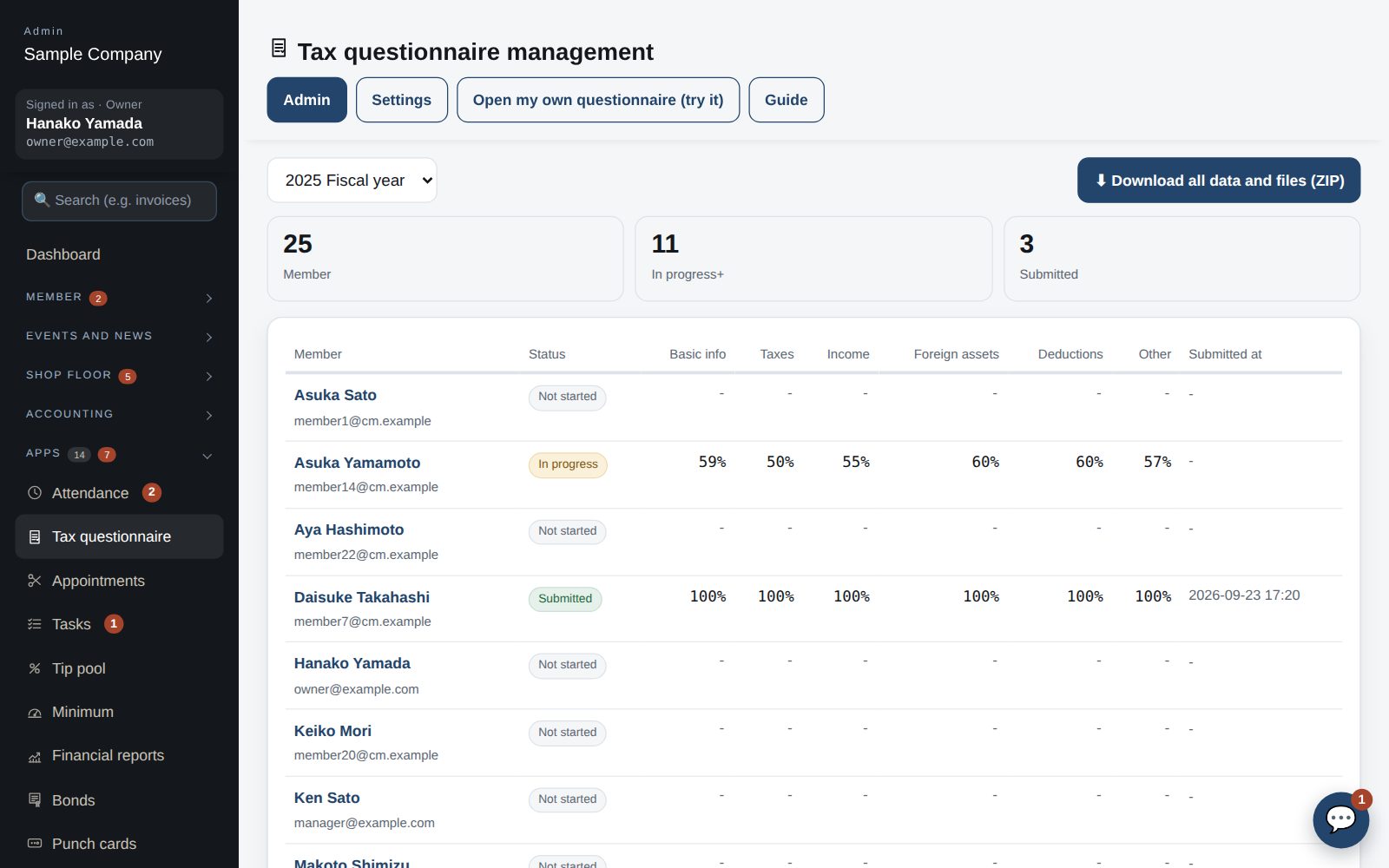
Track progress
- Under Apps → Tax questionnaire choose the year to see every member's status (not started, in progress, signed, submitted) and the percentage per section.
- “Download all data and files (ZIP)” gives the year's answers as CSV plus every attached file. JPY amounts are also converted to USD with the rate in Settings.
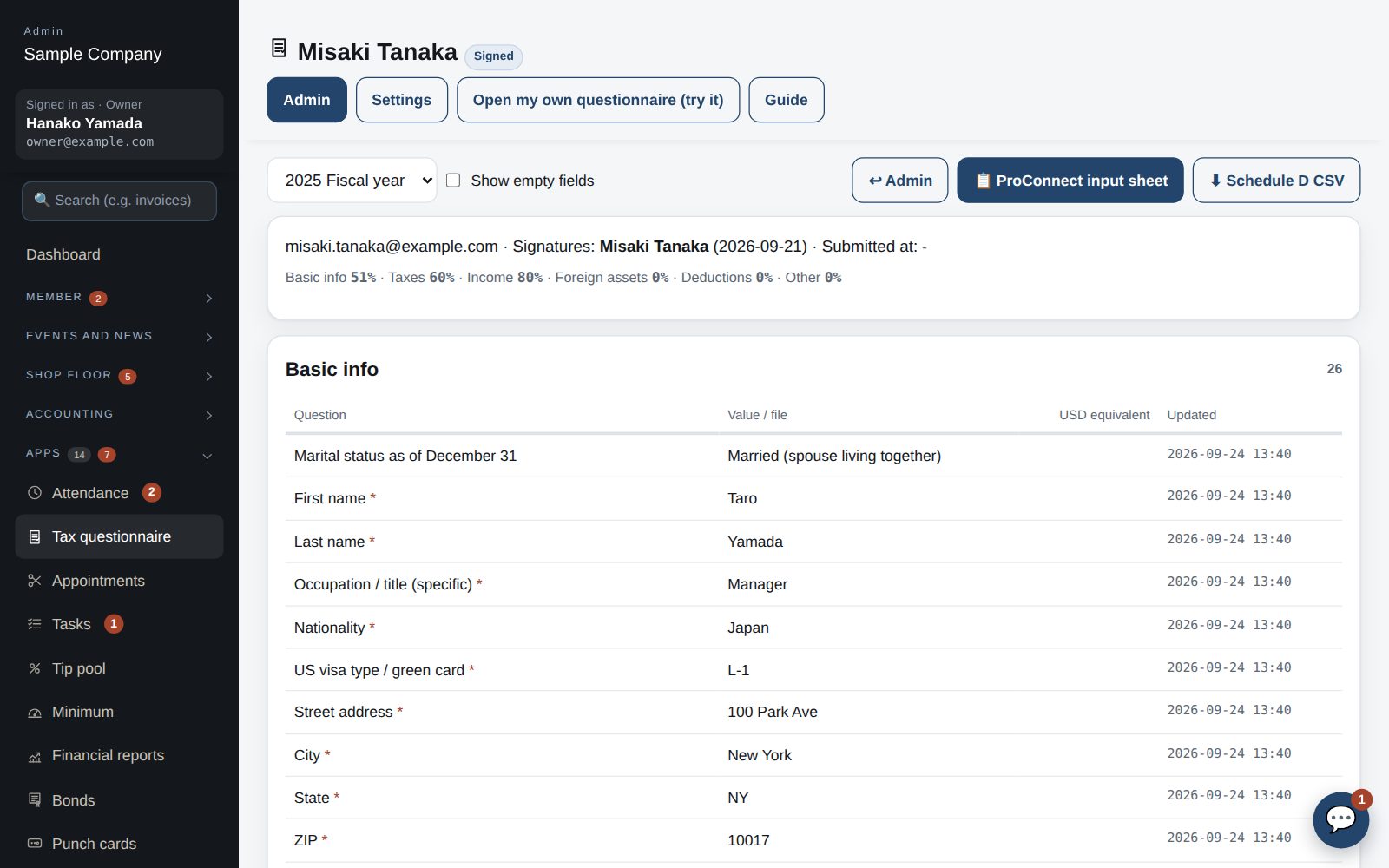
Read answers, unlock
- Click a member's name to read the answers and files per section with their labels. “Show empty fields” includes blanks.
- To let someone edit after submitting, use “Unlock”. To start over, “Delete all data” (type DELETE). Only the owner can do either (managers can only view).
Member app & web
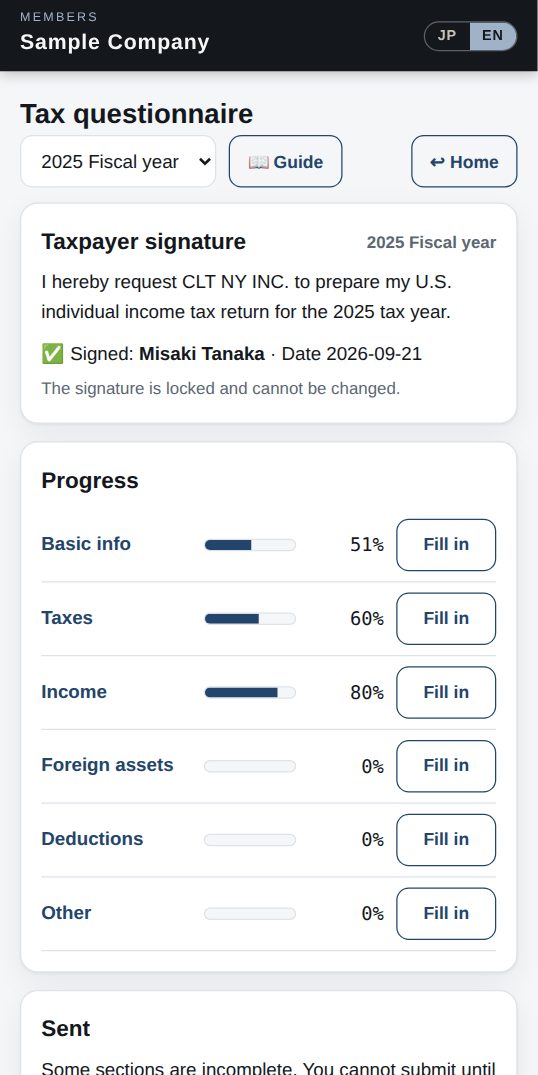
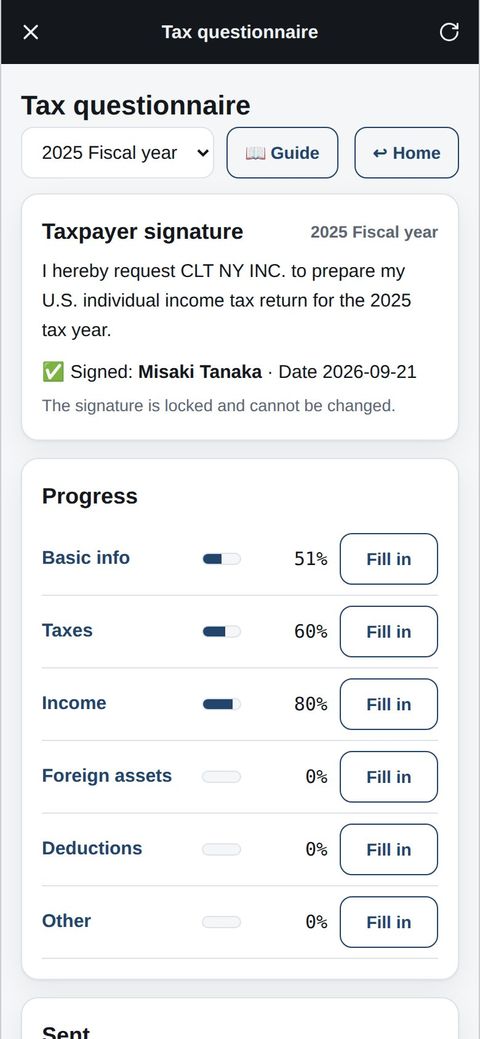
Sign
- Under “Tax questionnaire” choose the tax year, then sign under “Signature” with your name and the date. The sections open once you have signed.
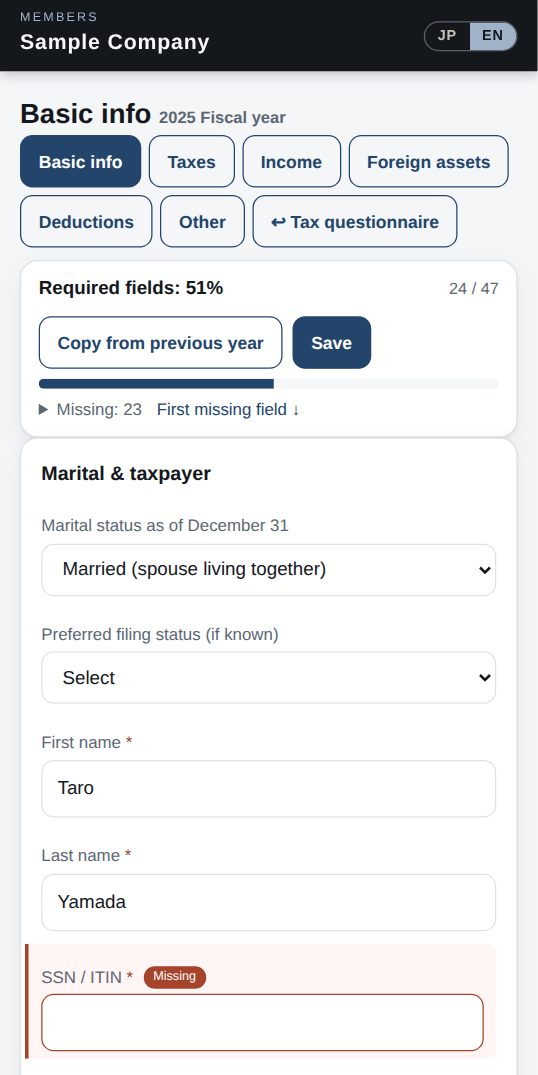
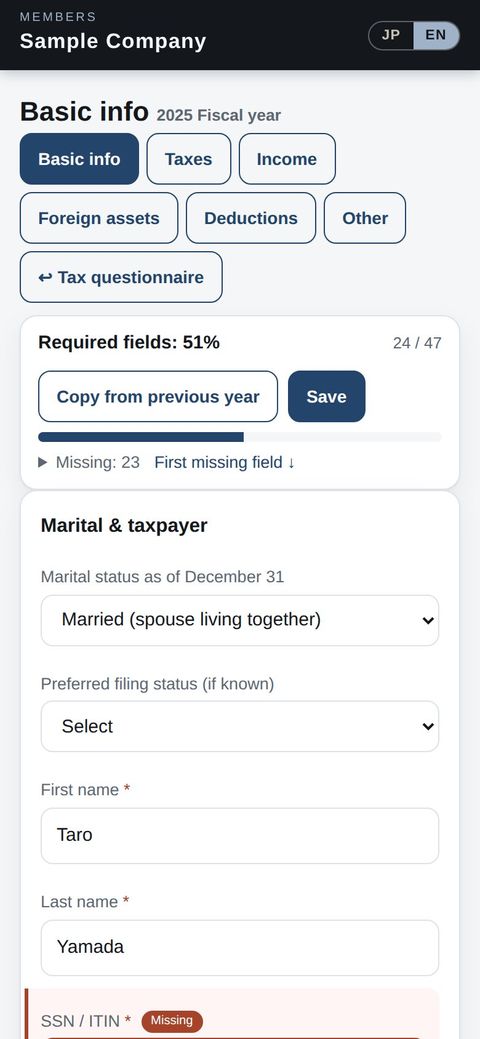
Fill in the six sections
- Fill in Basic info, Taxes, Income, Foreign assets, Deductions and Other. Choosing “Yes” reveals the fields and blocks underneath. Amounts take a currency.
- “Save” works at any time (even with required fields empty). “Copy from previous year” brings last year's answers over (files are not copied). Files can be attached per field.
Submit
- Once every section is at 100% you can “Submit”. The company's owners and managers are emailed and the questionnaire is locked. Contact the office if something needs changing.
Start with just the features you need. If nothing fits the way you work, we'll build it for you — free.
QuickBooks and ProConnect are trademarks of Intuit Inc., Stripe of Stripe, Inc. and Square of Block, Inc. This service is not provided or endorsed by these companies.