No paper forms. No re-typing.
Email the form, wait while it's printed, filled in by hand and sent back, then have someone re-type it into the membership system — this app replaces that whole round trip. The office simply checks the application and presses Approve.
How joining works today
- ✉️Email the application form (PDF or Word)
- 🖨️The applicant prints it and fills it in by hand
- 📮Wait for it to come back by mail or as a scan
- ⌨️Someone re-types it into the membership system
- 🔢Pick a member number and write the welcome email by hand
- 🪪Prepare and hand over a member card
Leaving is the same round trip — and someone has to remember to switch the member off on the right date.
With this app
- 📱Just send the link to the online form. Applicants fill it in on a phone or computer
- ✅The office checks it in the admin screen and presses “Approve and register”
- ⚡The rest is automatic: roster entry, member number, welcome email and the member card in the app
Leaving works the same way: approve it once and membership ends automatically at the end of the chosen month.
6 manual steps➜1 click to approve
Joining, step by step
- 1Applicant
Apply online
Put the form's link on your website or in an email. Applicants fill it in on the spot, on a phone or a computer — in English or Japanese.
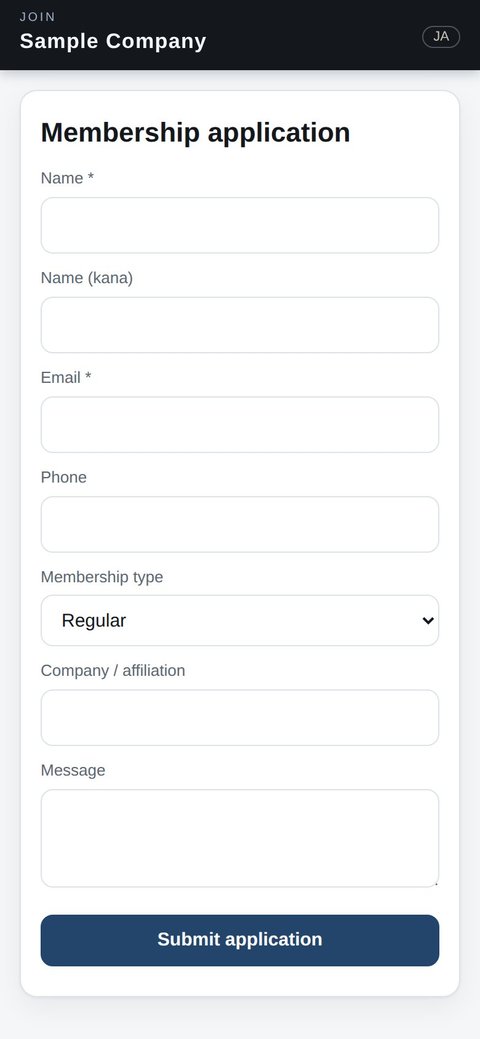
Application form (phone) - 2Automatic
The office is notified
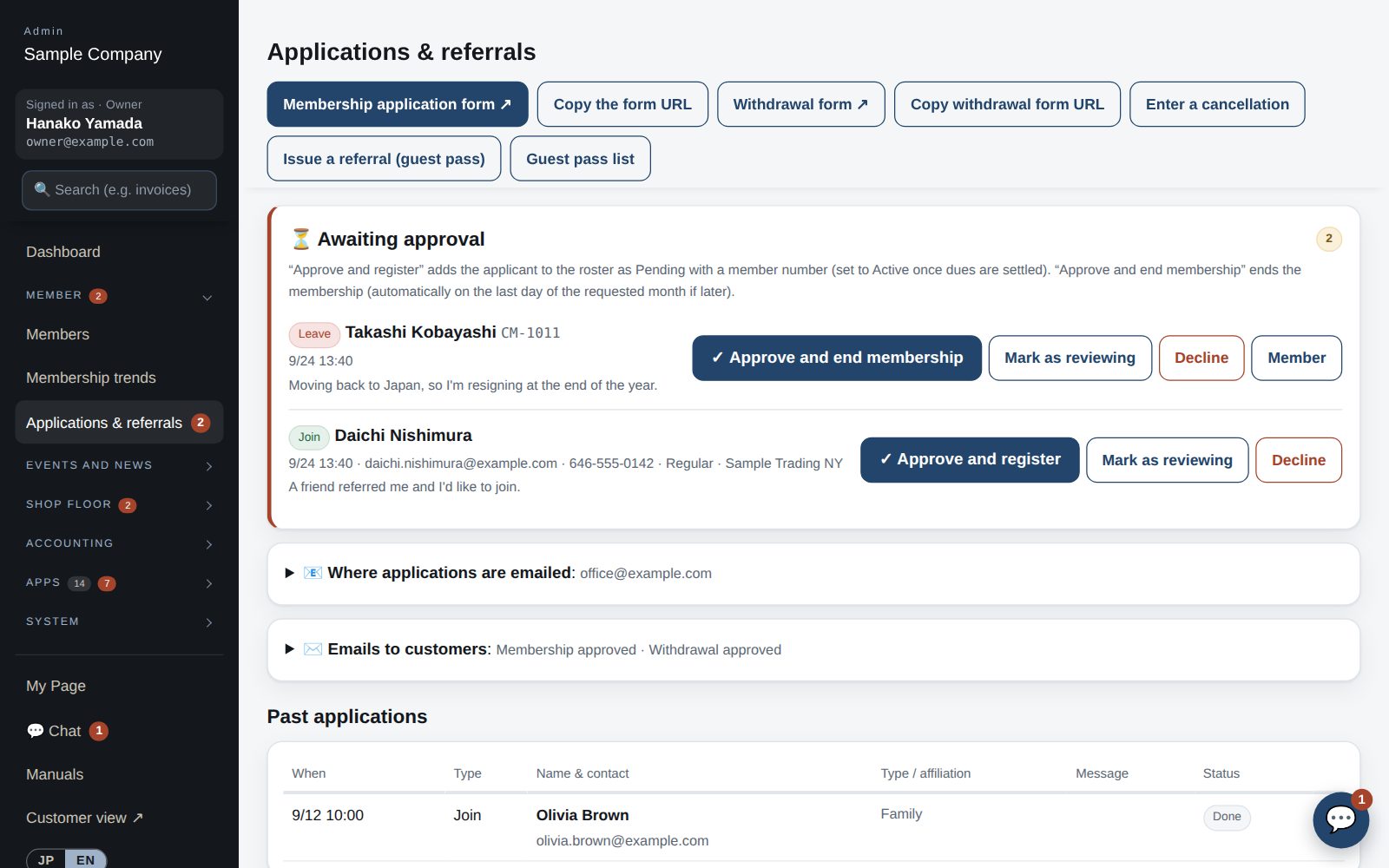
The application appears at once under “⏳ Awaiting approval” and is emailed to the addresses you choose. The count shows in the menu, so nothing slips through.
- 3Office
Check and approve
Review the details and press “Approve and register”. You see the welcome email and its recipient before anything is sent.
Admin: applications awaiting approval - 4Automatic
Roster, number and welcome email
The member is added to the roster, gets the next member number and receives the welcome email in their own language (you can edit the text). Once dues are confirmed, switch them to Active.
- 5Member
Member card in the app
The member signs in to the app with their email. The member card (QR) works right away, along with events and reservations.
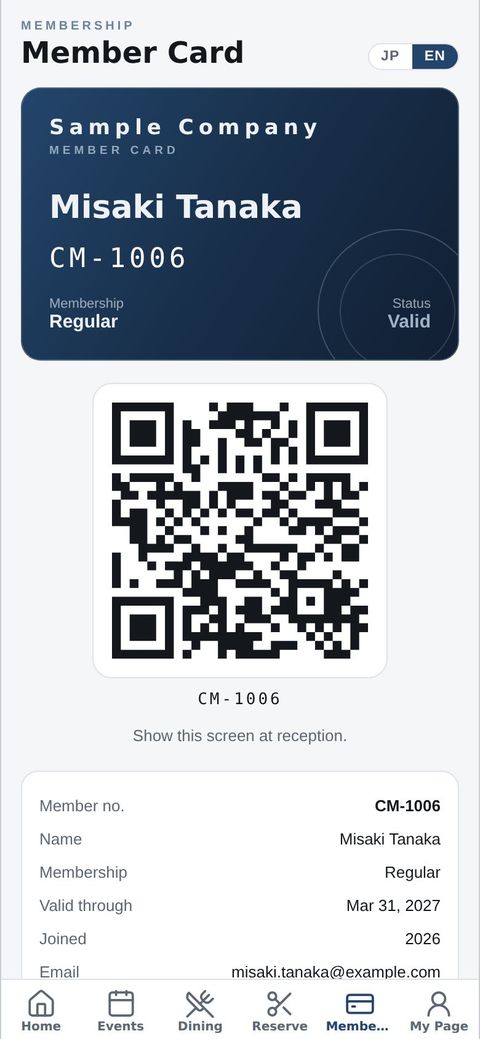
Member card in the app
Leaving, step by step
- 1Member
Withdrawal form in the app
Members use “Withdraw” on My Page. When signed in, their number, name and email are already filled in — they choose the month, sign and send.
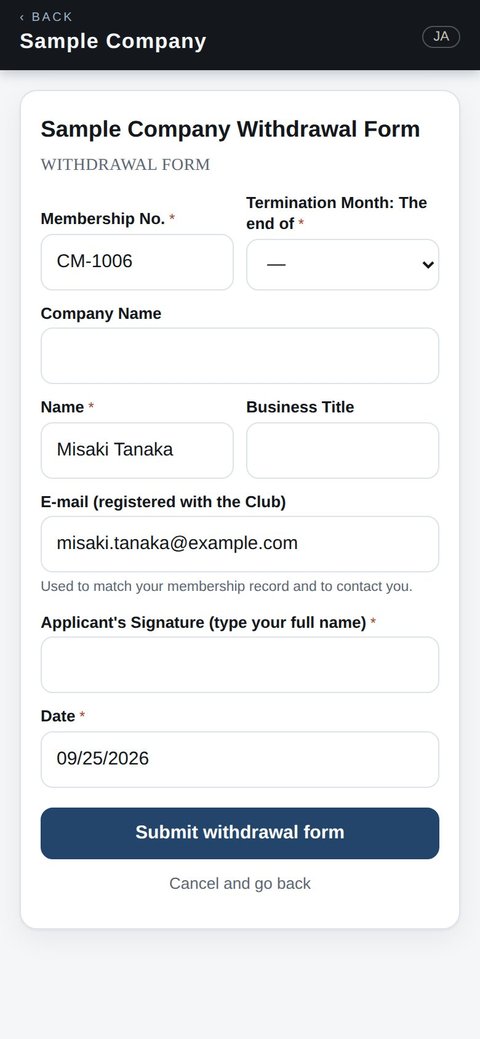
Withdrawal form (details prefilled) - 2Office
“Approve and end membership”
Check the form and approve. The confirmation email goes out in the member's language.
- 3Automatic
Ends automatically on the date
If the chosen month is later, they stay a member until its last day. Then membership ends automatically and app access stops; the record stays in the roster.
Paper vs. the app
| Today (paper & email) | This app | |
|---|---|---|
| Getting the form | Email it, wait for mail or a scan | Send a link; applicants fill it in on their phone |
| Data entry | Re-type the paper into the membership system | None — the applicant's answers go straight to the roster |
| Member number | Someone picks one and writes it in | Assigned automatically on approval |
| Welcome email | Written one by one | Set the text once; it goes out on approval (Japanese or English) |
| Member card | Print or order a card | The app's member card (QR) works right away |
| End date | Remember it and switch the member off later | Automatic at the end of the chosen month |
| Status | Paper and email on one person's desk | Visible in the admin screen, with a count of what's waiting |
Questions we hear
Import it from a CSV (Excel) file or from Join It — which can also sync automatically every night. From day one, new applications and withdrawals come in through the app.
Yes. We can match the fields and signature lines of your current application and withdrawal forms (just ask). Submitted applications can also be printed in the same layout as the paper form for your files.
The form and the app switch between English and Japanese, and emails go out in each person's language.
Only your organization's administrators (managers and up by default) can see applications, and you choose who is emailed when one arrives.
Start with just the features you need. If nothing fits the way you work, we'll build it for you — free.
QuickBooks and ProConnect are trademarks of Intuit Inc., Stripe of Stripe, Inc. and Square of Block, Inc. This service is not provided or endorsed by these companies.