Salon booking
Open times from staff and menus — by name or any stylist
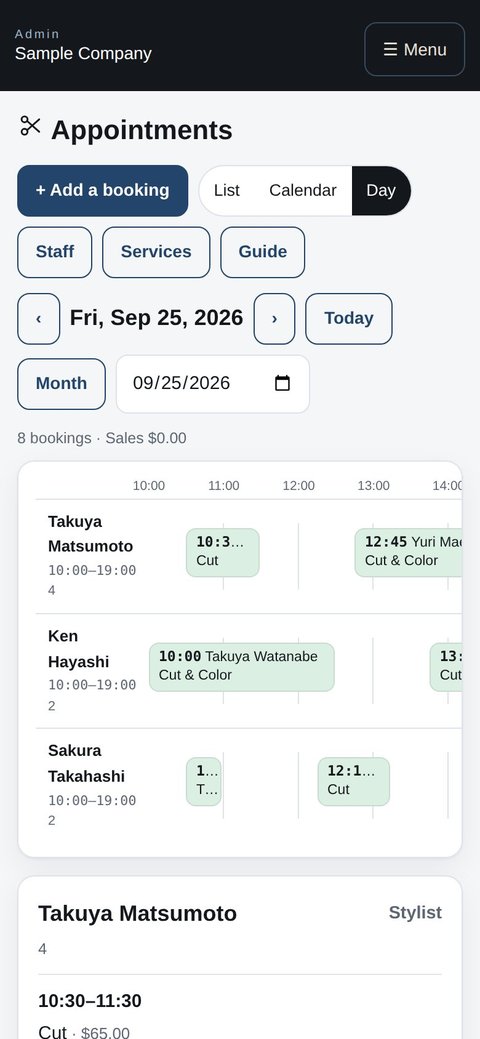
Open slots are calculated from service durations and staff hours, and clients book in the app. The salon sees bookings as a list, a calendar or a day chart (stylist × time), adds phone bookings to the same chart, and records arrivals and cancellations on the spot.
What it does
Choose who can perform each service.
Slots appear only within working hours.
Decide whether to accept “any stylist”.
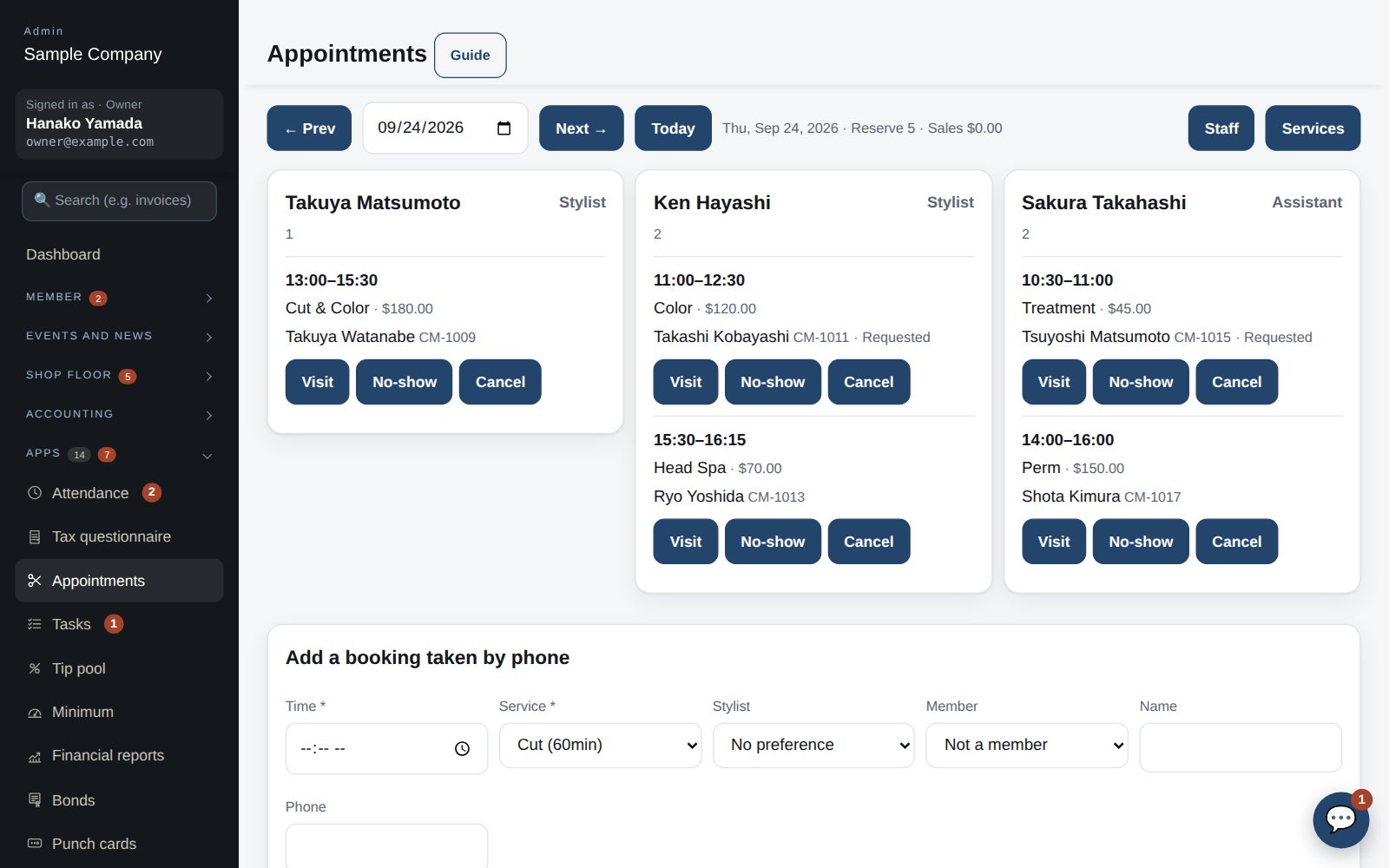
The day view is a stylist × time chart; click an empty spot to add a phone booking.
How it flows
- 1Member / guestPick service & stylist
Available times appear.
- 2Member / guestBook
Cancel from the same screen.
- 3StaffDay sheet
Record arrivals, completions and cancellations.
On phones & in the app
Customers book from the Reserve tab in the app, choosing the service, stylist and time. Staff see today's schedule on a phone and mark visits or cancellations.
- 📱CLT Members iPhone appOne app for members, staff and managers.
- 🌐Phone browserNo install needed — Android too.
- 💻ComputerThe same data on a big screen.
See the screens
Admin (office)
Register services
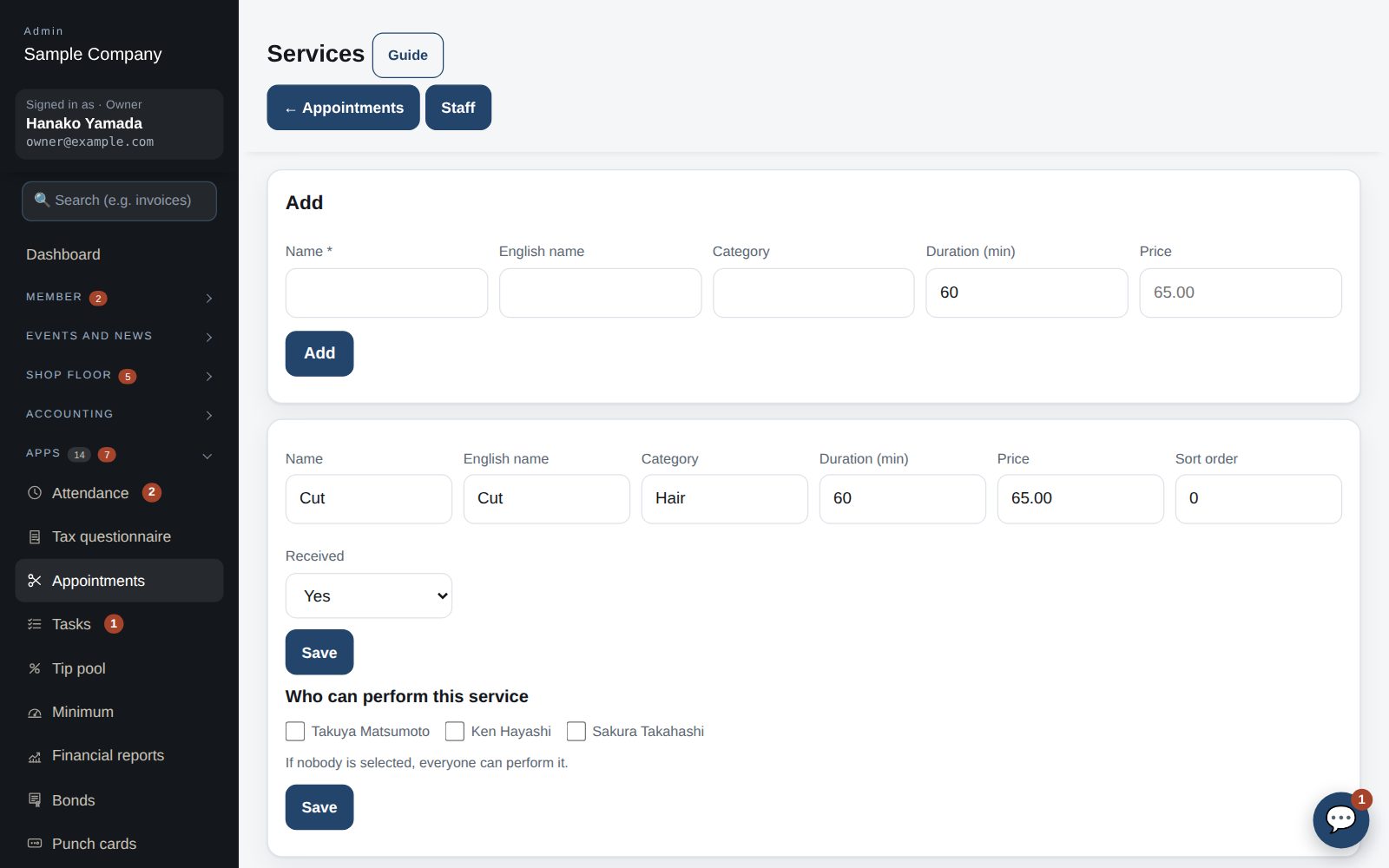
- Under Apps → Salon booking → Menus, register services (name, duration, price). Availability is computed from the duration.
- For each service tick the staff who can perform it. Unticked staff are not offered for that service.
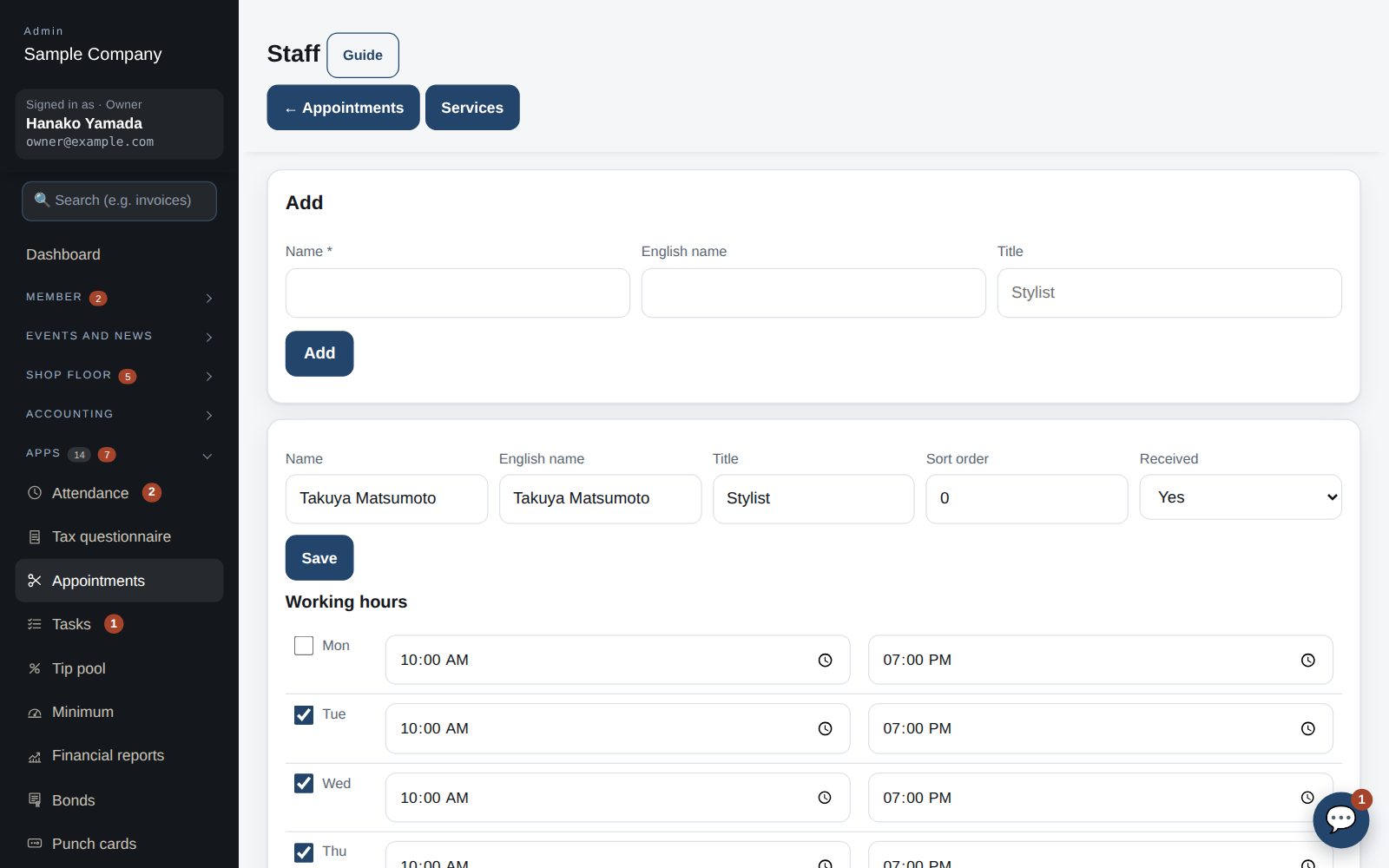
Staff and working hours
- Under “Staff” register each stylist and enter their working hours by weekday. Times outside them are not offered.
- Register days off under “Off”; that person's slots disappear for the day.
- Under “Rules” set how far ahead bookings are accepted, the cut-off before the slot, and whether “any stylist” bookings are allowed.
Day view: see and add the day's bookings
- “Salon booking” opens on today in the Day view. The chart at the top shows stylist × time, with hours off shaded. Move days with ‹ › and Today.
- Click an empty spot in the chart to fill in “Add a booking taken by phone” below with that stylist and time. Choose a member or type the customer's name and press Add.
- Change the status (arrived, no-show, cancelled) on the stylist's card. Sales count completed bookings.
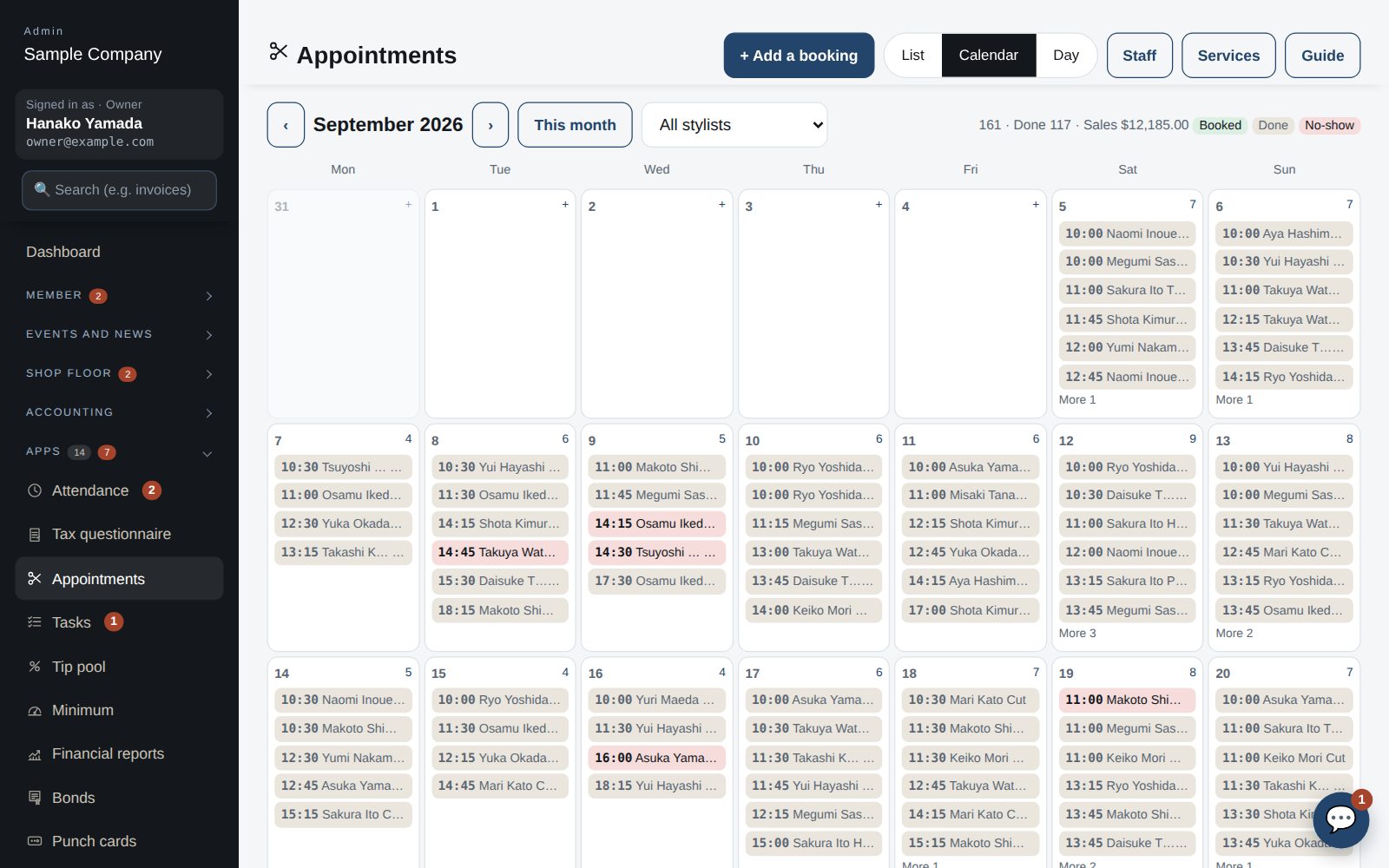
List and calendar views
- Switch between List, Calendar and Day at the top.
- The calendar shows each day's bookings (time, customer, service) for the month, and can be narrowed to one stylist. Click a date or a booking to open that day.
- The list shows upcoming or past bookings in date order. Filter by status and stylist, or search by name, phone, service or note. You can mark arrivals and cancellations right there.
Member app & web
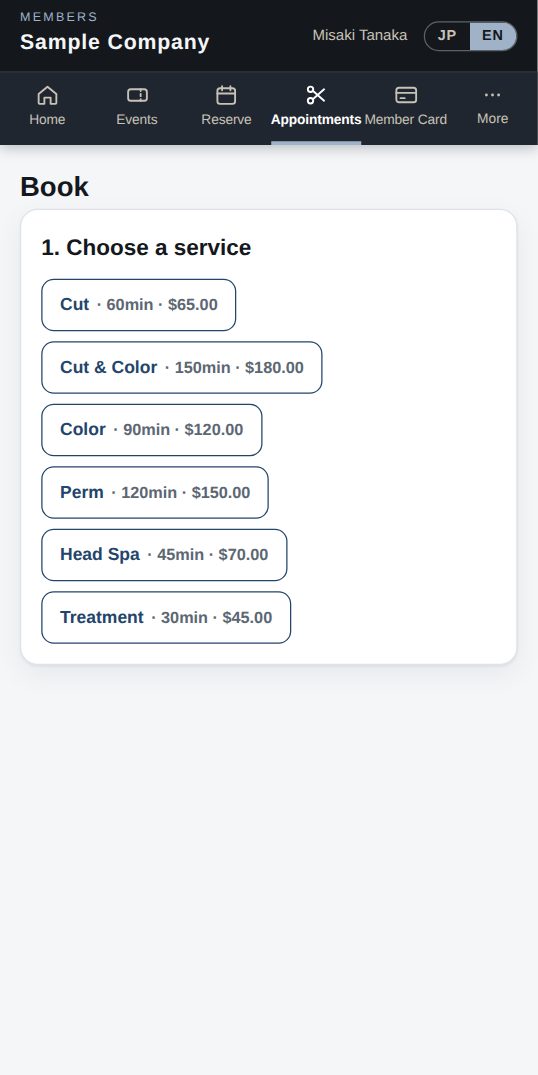
Book an appointment
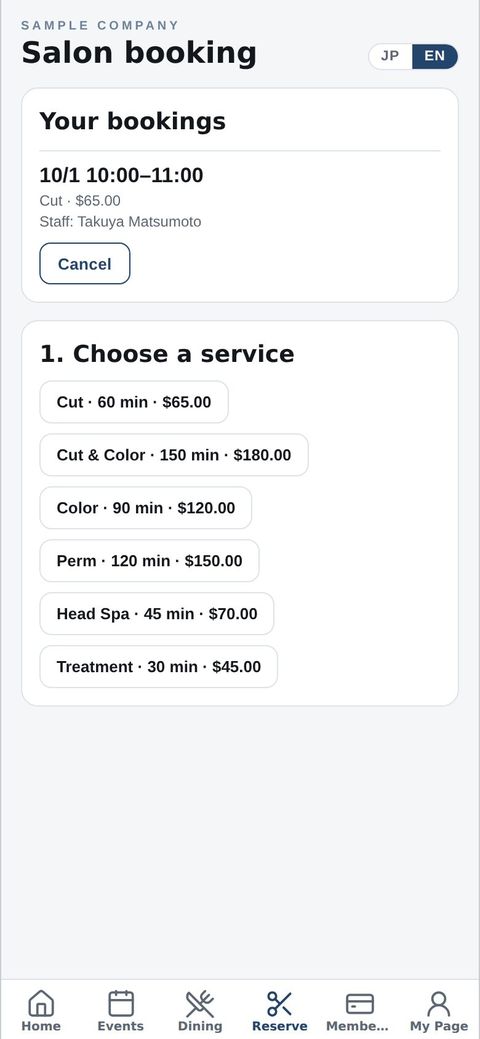
- Open “Booking” in the menu, choose a service and a stylist (or “any”), and pick one of the available times.
- View or cancel your bookings on the same screen. Please cancel before the shop's cut-off.
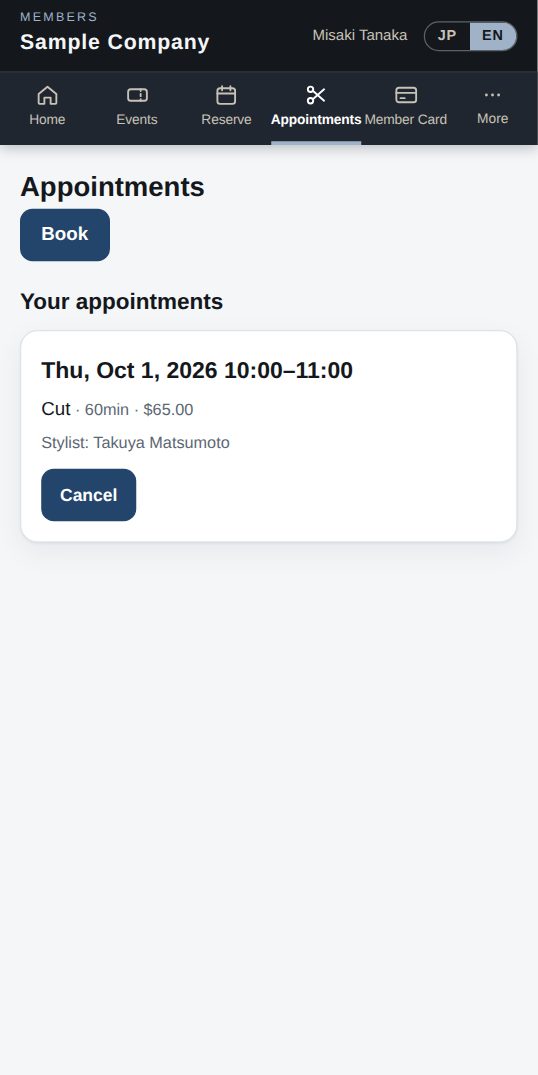
Your bookings
- Upcoming and past bookings are listed with date, service and stylist.
Start with just the features you need. If nothing fits the way you work, we'll build it for you — free.
QuickBooks and ProConnect are trademarks of Intuit Inc., Stripe of Stripe, Inc. and Square of Block, Inc. This service is not provided or endorsed by these companies.